Claude.ai, Claude Desktop, Cowork, or Claude Code: which one should you use, and when? And why is Claude Code not only for coding?
I get this question a lot, in workshops, in my DMs, and in offline conversations.
I get this question a lot, in workshops, in my DMs, and in offline conversations.
There are many ways to use Claude now. Some are tied to a place you already work, like Claude in Excel or Claude in Slack. This article is about the main four that overlap enough that people are genuinely always confused about which to reach for. Claude Chat on claude.ai. Claude Chat in Claude Desktop. Claude Cowork. And Claude Code.
The honest answer up front: I almost exclusively use Claude Code for everything, both coding and non-coding. Contrary to the myth that Claude Code is just for coding, it is actually the most powerful AI agent that can do nearly anything you can do on your computer, not only write software.
Despite its power, not everyone is ready to start their AI journey with Claude Code. So, I sat down and tested all four properly, to see what each one can and cannot do.
First, the thing that makes them overlap.
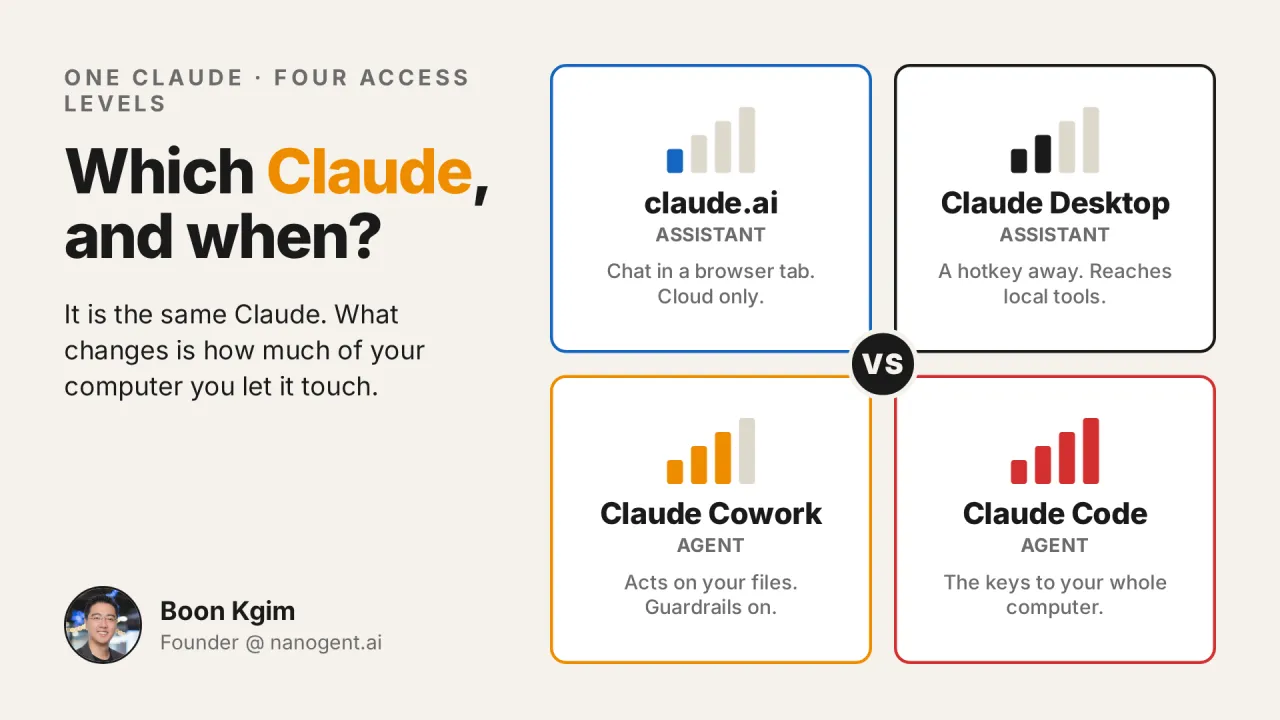
They are not four different intelligences. It is the same Claude. What changes from one to the next is how much of your files and computer you let it touch. On one end it is an assistant that lives in a chat window. On the other it is an agent with full access to your computer. Once you see this one axis, picking the right tool gets easy.
Each step up the ladder unlocks more of your computer, and asks for something in return. Here is the spectrum, from least access to most, with what you gain and what you give up at each step.
1. Claude.ai: the assistant in a browser tab
This is the one most people mean when they say “Claude.” You open claude.ai in your browser, or the app on your phone, you type, it answers. It is all one account, so your chats, projects, and memory follow you across web, mobile, and desktop.
It runs remotely on Anthropic’s servers, not on your computer. You can upload files for it to read, point it at the web, build an artifact, and wire in connectors. It is a very capable assistant.
It has also closed a lot of the gap lately. It now supports Skills, which used to be available only in Claude Code, and Projects to keep your files, instructions, and context organized in one place. Together they make claude.ai powerful enough for a lot of real work, not just one-off chat.
What it does not do is reach into your own computer. There are no subagents running tasks in the background. It works inside the chat window, and the chat window is the boundary.
There is a trade-off worth naming. Your Skills, your Projects, and your context all live inside Anthropic’s platform. The more of your workflow you build there, the more you depend on one vendor. With Claude Code, the same Skills and context sit as plain files in your own folders, which you can move, back up, or take elsewhere.
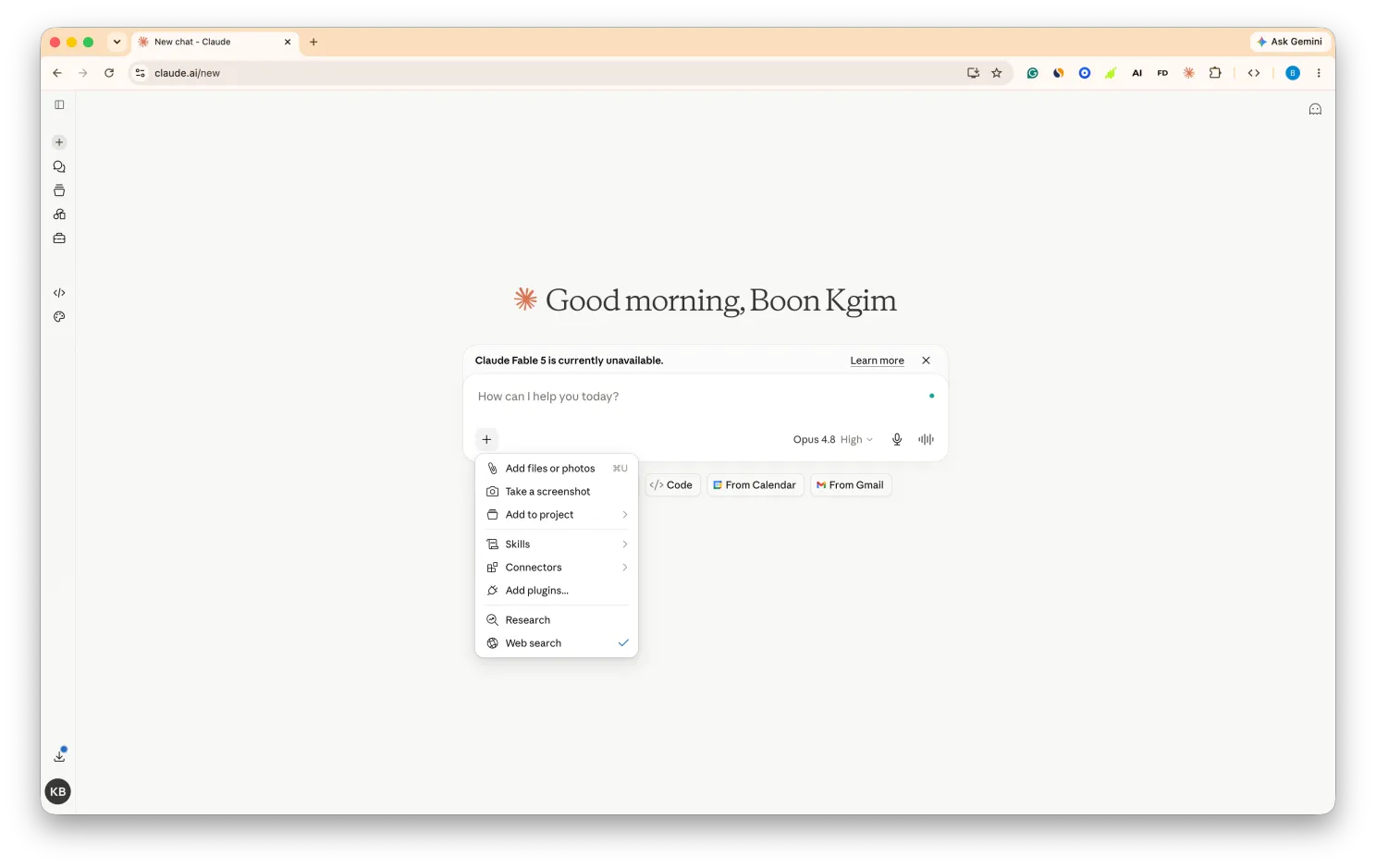
Claude.ai on the web . Skills, Connectors, and Web search all accessible from the + menu
Best for: quick questions, research, drafting, and now, with Skills and Projects, a fair amount of repeatable work. For most people, most of the time, this is enough.
If you are curious how far the chat window alone can take you when building a website, I wrote an article on Claude Chat versus Claude Code.
Read the full post: I can build my website in Claude Chat, when would I need Claude Code?
2. Claude Desktop: the same assistant, one keystroke away
Claude Desktop is claude.ai in a desktop app. Same assistant underneath.
Two things make it worth installing. It can run desktop extensions, the local kind of connector, so it can talk to tools on your own computer, your files, a local database, native apps, your browser. The web version only reaches cloud connectors like Gmail or Notion. The desktop app reaches both. And it has a global hotkey, Option twice on Mac, or Ctrl+Alt+Space on Windows, that pops Claude open over whatever you are doing, so you can chat, screenshot, share a window, or dictate. They call it Quick Entry, a handy way to reach Claude without leaving what you are doing.
It is still an assistant, not an agent. But it is the assistant that is always within reach, plus a bridge to your local tools. And you give up nothing to get here, it is the same synced Claude with a hotkey and a reach into your computer.
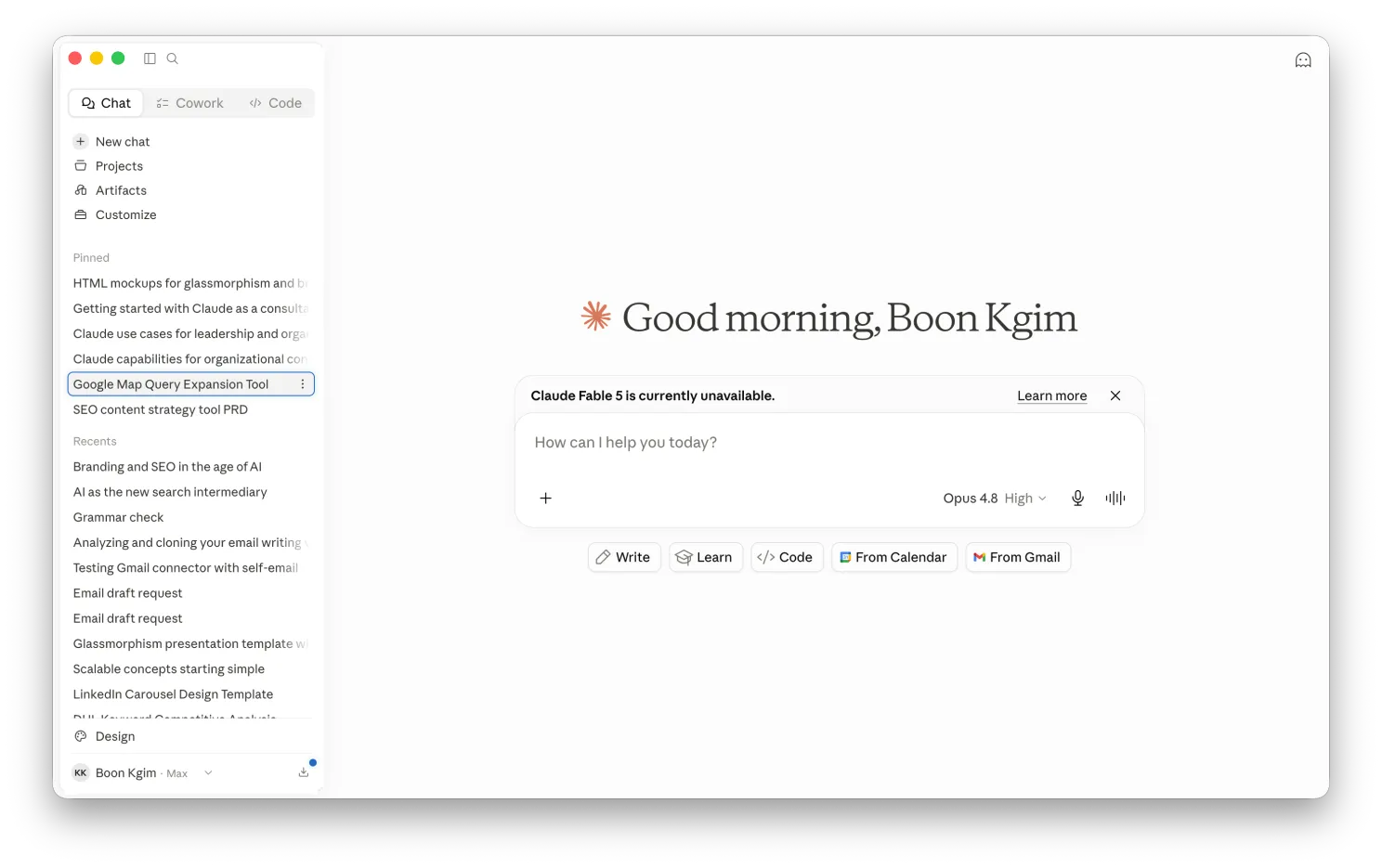
Claude Desktop. The same claude.ai, now a standalone Mac app with a sidebar for all your chats
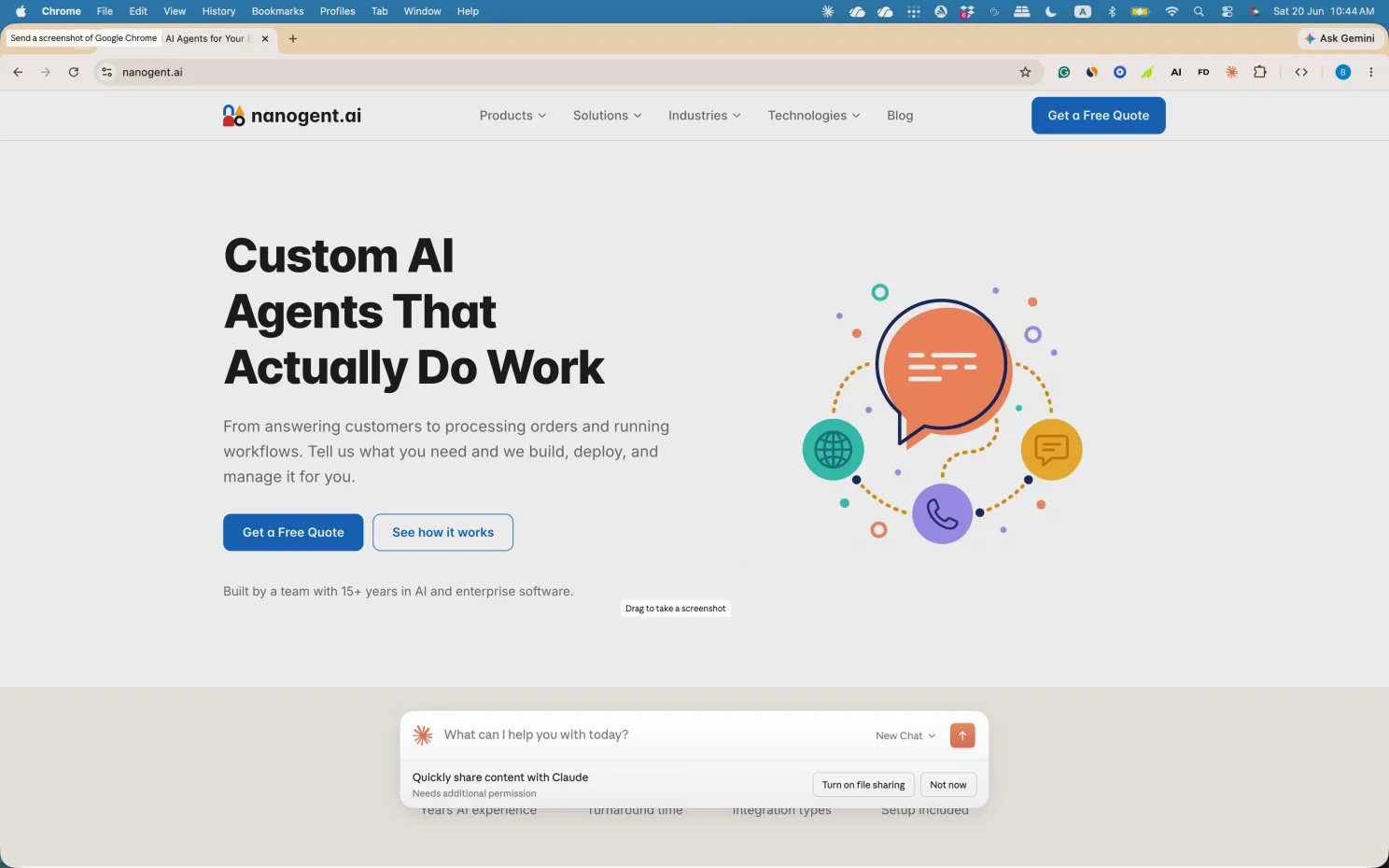
Quick Entry popping up over a website. Press Option twice on Mac and Claude appears on top of whatever you are doing
Your connectors are not tied to one app, either. They live at the account level, so once you connect a tool it is available across Chat, Cowork, and Code, not set up three times.
One thing worth knowing is that this same desktop app is also where the next two live. Cowork and Code are the other two modes inside it, so you install once and switch modes to fit the job.
Best for: everything claude.ai is good for, except now it is a keystroke away and can reach local tools on your computer, not just cloud ones.
3. Claude Cowork: the agent packaged for everyday work
This is where it crosses the line from assistant to agent. You give Cowork a goal and your files, and it plans and does the work over a longer run.
Three things separate it from Chat:
- It runs locally, acting on your real files, folders, apps, and browser, not just what you uploaded or connected.
- It can spin up subagents and dispatch work in parallel, instead of a single linear thread.
- It runs long, multi-step jobs over hours, on a schedule if you want.
So instead of a chat reply or online Artifacts, it goes and produces a real deliverable, research across 50 documents, a polished Excel sheet or a slide deck, then saves it on your computer.
The trade for that power: your work stops following you. Chat syncs to claude.ai across web, mobile, and desktop, but Cowork and Code run fully on one computer, so their work and chat history stay there and do not sync across your devices. It is also no longer free, Pro and up.
The difference from Claude Code is that Cowork is this same agent power packaged for everyday work, with no raw Terminal and more guardrails around what it touches.
Best for: sustained work and finished deliverables, recurring or scheduled jobs, anything where you want it to act on your files and apps on its own but you do not need a full developer environment.
4. Claude Code: the agent with the keys to your computer
The far end of the spectrum. Claude Code runs in your Terminal, inside your actual project, with the same access you have.
Your file system. Your Terminal. Your dev tools. Git, and both local and remote GitHub repos. It shows you a visual diff of every change. It does everything Cowork does, and then it can run any command your computer can run, end to end, with the same permissions you have.
That last part is the whole point, and it is also the reason people misunderstand it. The only thing you leave behind is Cowork’s everyday packaging. You are in the raw Terminal now, with lighter guardrails, and that is exactly what removes the ceiling.
Best for: building and shipping software, and deep, computer-wide automation, anything where you want the full power of your computer.
Claude Code is not just for coding
This is the myth I want to clear up. I personally use Claude Code for almost everything, from building and shipping more than 10 production apps, to writing these very LinkedIn posts and articles, building my workshop slides and documents in HTML instead of PowerPoint and Word, and running my content and SEO pipelines. Most of that is not coding at all.
The name says code. It lives in a Terminal, which for a lot of people is a black screen that signals “not for me.” So the natural assumption is that it is a tool for software engineers.
Here is the reframe. Claude Code is just an AI agent you start with one command in the Terminal, which gives it access to your computer. With the right permissions, it can do almost anything you can do on your computer. Not only build software.
Contrary to what most believe, it is not that difficult to use. You are not learning how to use all the commands in a Terminal. Once you launch it from the Terminal, most of the time you are still chatting with it the way you always do on the web.
This is not just my take. Inside Anthropic, it was not only engineers who reached for Claude Code. Their marketing, data, and even legal teams started using it to do their actual jobs, building tools and mining data, not shipping production code. (How Anthropic teams use Claude Code)
So if there is a ladder in all of this, the top rung is worth climbing. The further you move from assistant to agent to Claude Code, the more of your computer you can hand to AI, and the more you are actually leveraging it instead of just chatting with it.
The thing standing in the way is smaller than it looks. The Terminal is a mindset block, not a skill gap. Across four cohorts of my workshop, consultants, coaches, and business owners who had barely touched a Terminal a week before shipped a live website within hours, many on their first try. If they can, so can you.
If you are a business professional who wants to learn the foundation of Claude Code and start using it the way I described here, I run a Foundations of Claude Code workshop. The next two cohorts are on 2 July and 16 July.
Details: https://boonkgim.com/workshops/foundations-claude-code/
#AI #ClaudeCode #AIAgents #VibeCoding #BuildInPublic
Enjoyed this? Subscribe for more.
Practical insights on AI, growth, and independent learning. No spam.
More in Vibe Coding
Two Choices for Handling Tech Debt in Vibe Coding
· Go full vibe: ignore tech debt, and when things inevitably break, spend a week fixing it.
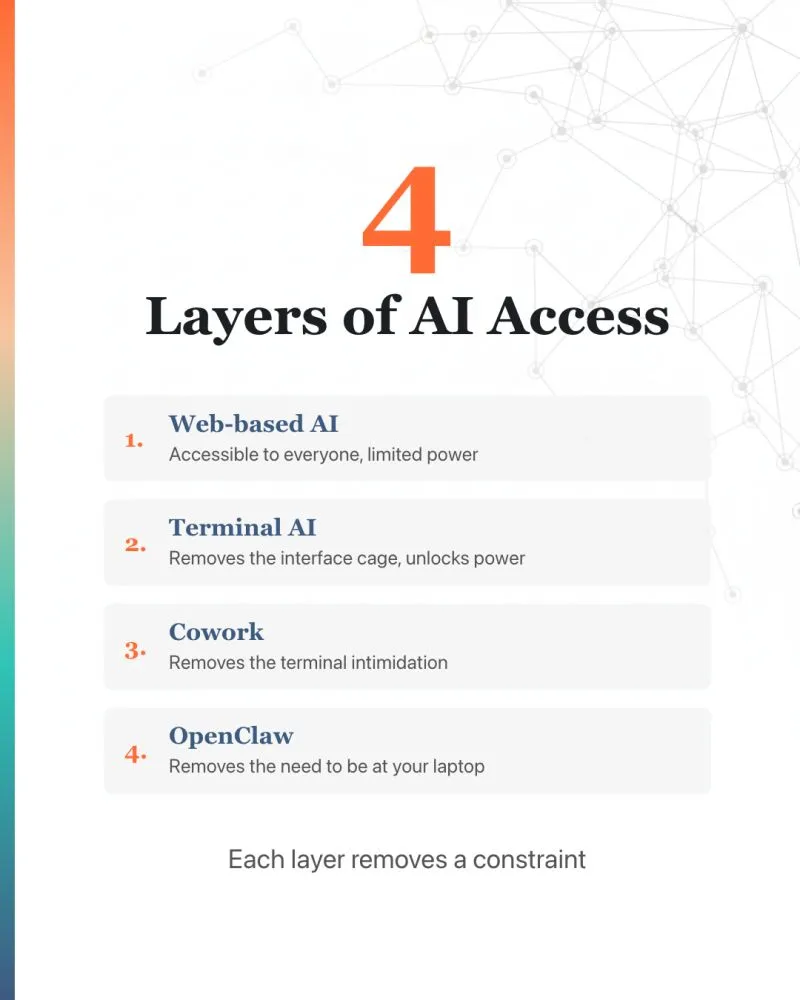
"What's the difference between ChatGPT, Claude Code, Claude Cowork, and OpenClaw?"
I've been asked this enough times that I thought I'd write it down. Here's my personal take.
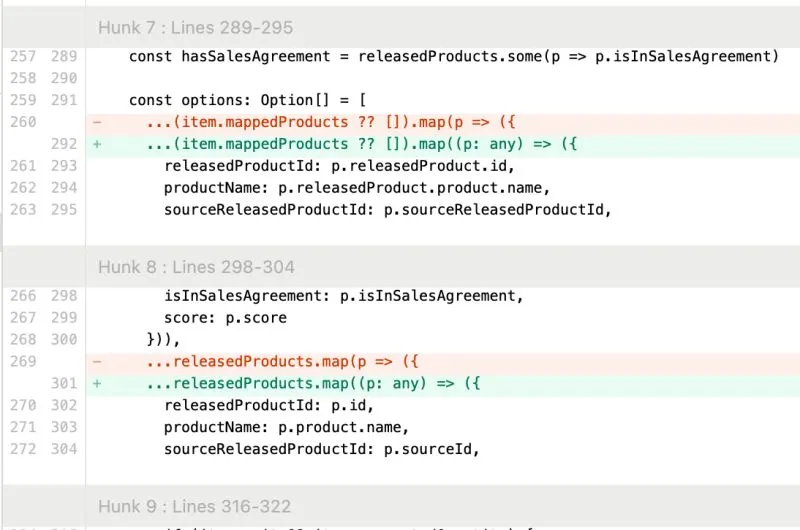
I caught Cursor trying to be lazy.
The AI agent couldn’t solve the typing error, so it cast the variable to 'any' to suppress the error, just like a sloppy software engineer would.
Should I Still Use MCP? Is MCP Dead?
So I thought it is good to write about it, especially for a non-tech audience who are curious.
What Publishers Think About AI Image Generation
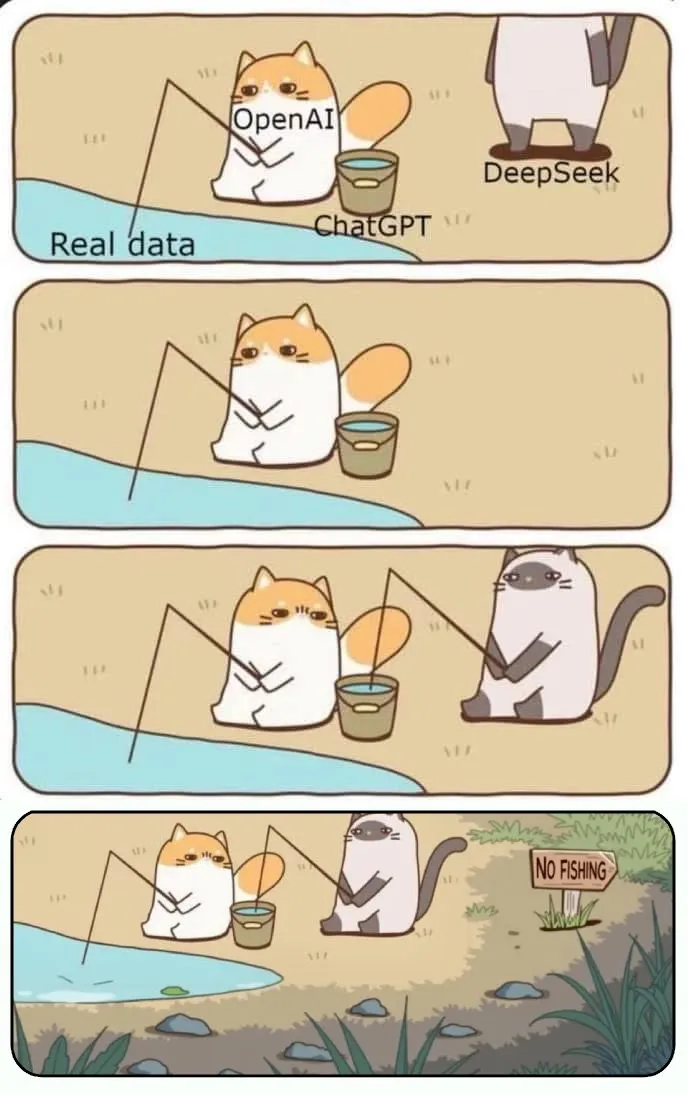
I couldn’t find the original source of the meme—happy to credit the author if anyone knows the source.
💡 Little-known hack to get the most out of Cursor for FREE
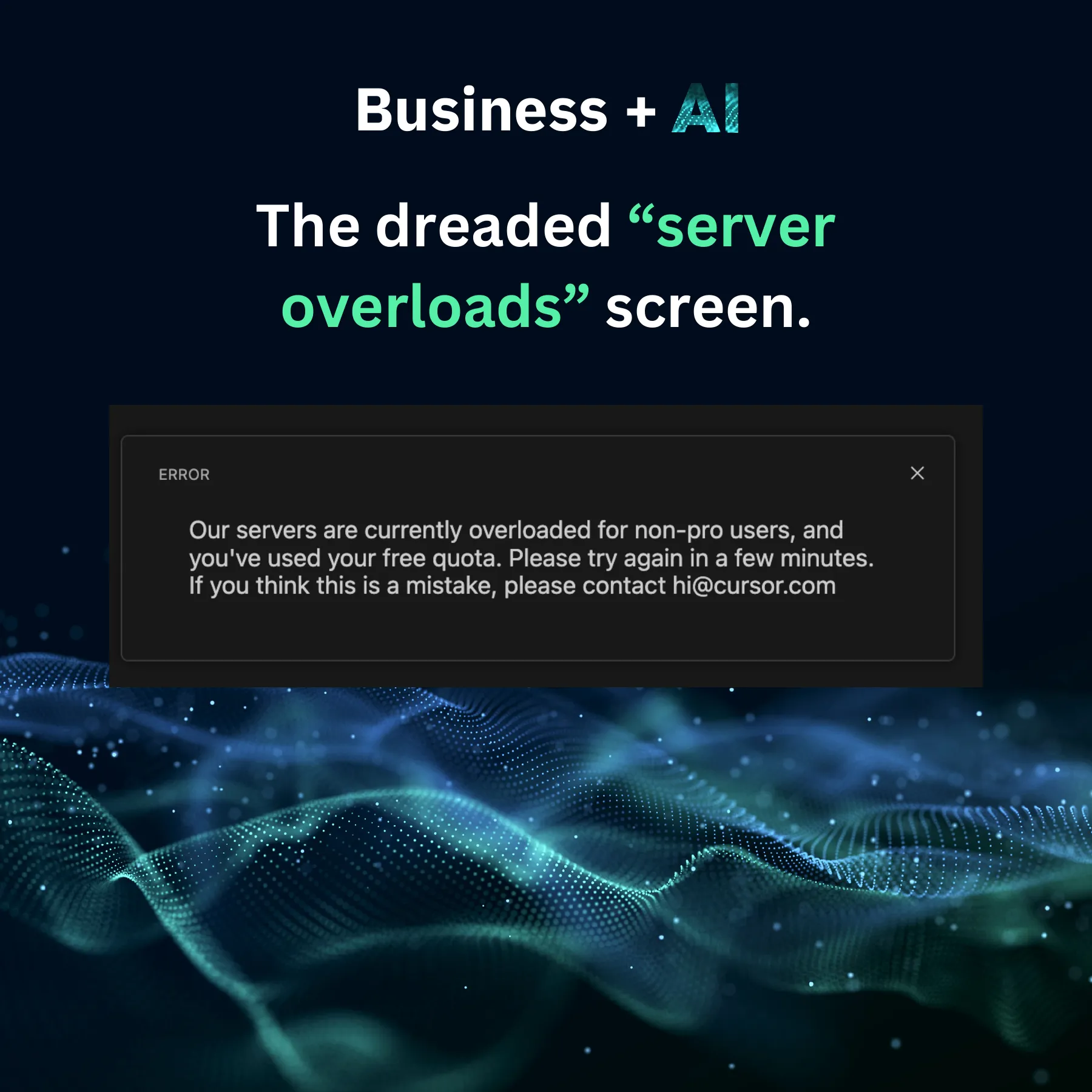
If you're using Cursor on the free plan, you will eventually hit the dreaded "servers overload" screen.
Two Choices for Handling Tech Debt in Vibe Coding
· Go full vibe: ignore tech debt, and when things inevitably break, spend a week fixing it.
I caught Cursor trying to be lazy.
The AI agent couldn’t solve the typing error, so it cast the variable to 'any' to suppress the error, just like a sloppy software engineer would.
💡 Little-known hack to get the most out of Cursor for FREE
If you're using Cursor on the free plan, you will eventually hit the dreaded "servers overload" screen.
"What's the difference between ChatGPT, Claude Code, Claude Cowork, and OpenClaw?"
I've been asked this enough times that I thought I'd write it down. Here's my personal take.
Should I Still Use MCP? Is MCP Dead?
So I thought it is good to write about it, especially for a non-tech audience who are curious.
What Publishers Think About AI Image Generation
I couldn’t find the original source of the meme—happy to credit the author if anyone knows the source.