From ChatGPT to Claude Code: A Non-Techie’s Introduction to the Raw Power of AI by a Techie
Not because I don't like sharing. But because the only tool I use for 99% of my AI needs is Claude Code. And while I think it is not hard to learn, I'm never...

Every time someone asks me to share how I use AI with a non-technical audience, I hesitate.
Not because I don’t like sharing. But because the only tool I use for 99% of my AI needs is Claude Code. And while I think it is not hard to learn, I’m never sure if non-technical people are actually interested in a terminal-based tool.
This time, a long-time friend asked me. And I finally said yes. Because I have met more non-techies who are using Claude Code now. So I thought, let’s just do it.
This article is my first attempt to explain Claude Code for a non-technical audience. It’s based on a presentation I prepared for the sharing session. It’s meant to be an introduction to inspire you to start using Claude Code (or any terminal AI tool), not a guide.
A Quick Intro of Myself
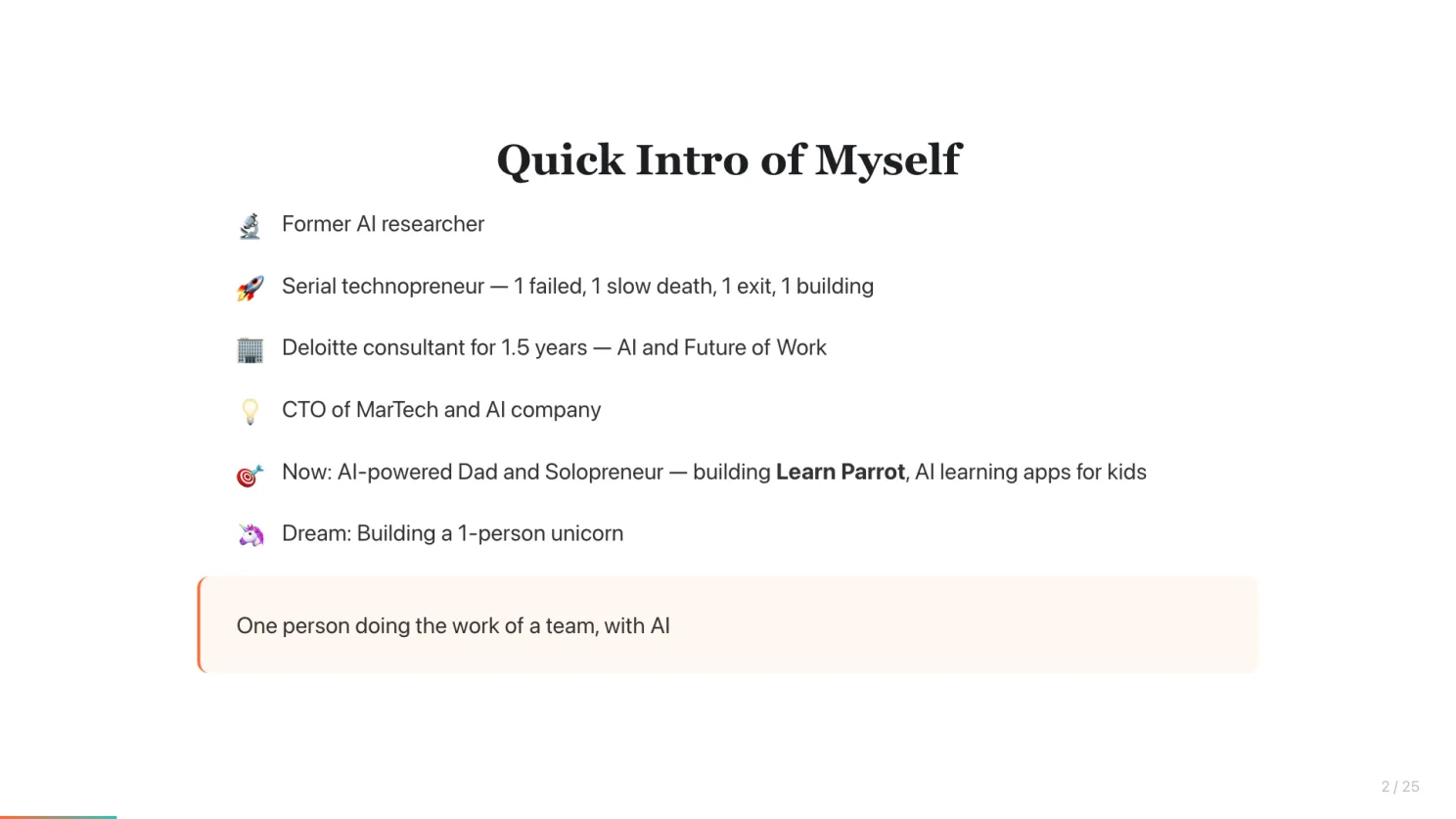
I’m a former AI researcher turned serial technopreneur. One startup failed, one slow death, one exit, one currently building. I spent 1.5 years at Deloitte Consulting on AI and Future of Work, then became CTO of a MarTech and AI company. Now I’m an AI-powered dad and solopreneur building Learn Parrot , AI learning apps for kids. My dream is to build a 1-person unicorn. One person doing the work of a team, with AI.
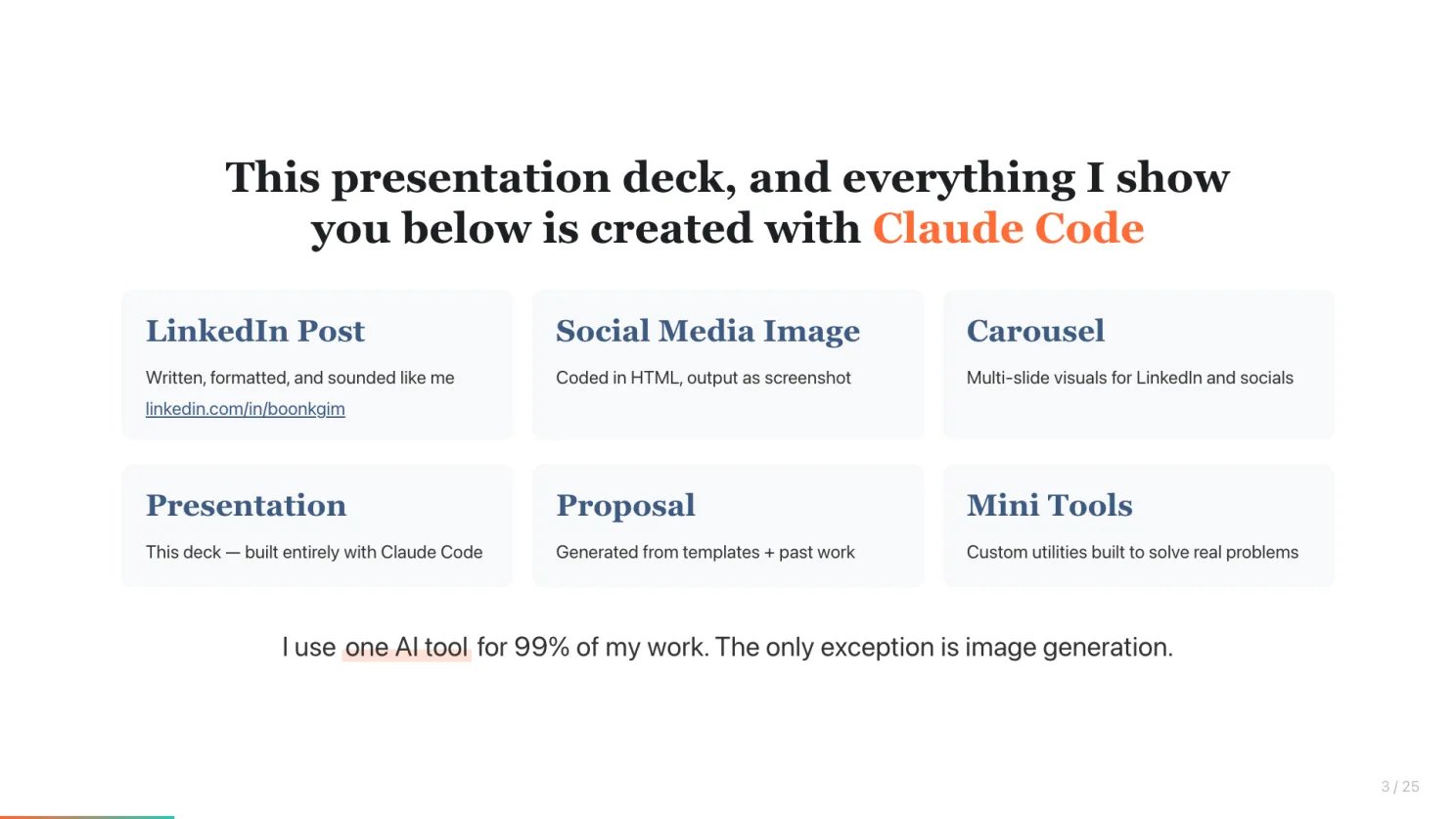
Everything I Show You Here Was Created with Claude Code
This post itself. The presentation deck in this post. The screenshots of slides. The LinkedIn posts I write, their cover images, carousels, proposals, even mini tools I built to solve specific problems.
I use Claude Code for 99% of AI needs. The only exception is image generation. I have to switch to Nano Banana because Claude Code doesn’t have native image generation capability.
If you’re thinking “but I’m not a developer” - that’s exactly the point of this article.
Why Claude Code? Because Web AI Is a Cage
Here is something I think most people don’t realize.
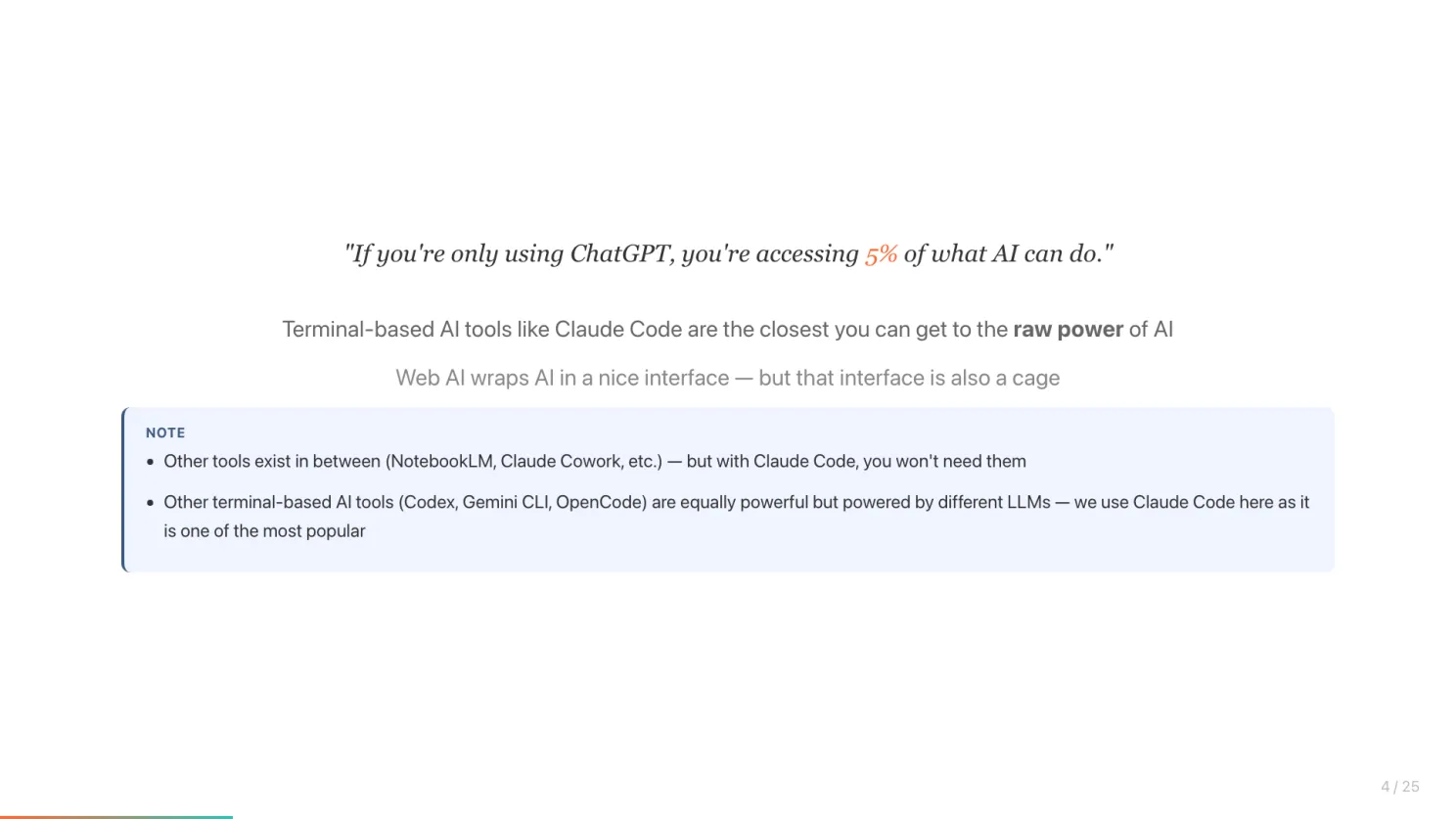
If you’re only using ChatGPT, you’re probably accessing 5% of what AI can do. Ok, 5% is metaphoric, hope you get the point.
Web-based AI tools like ChatGPT wrap AI in a nice interface - but that interface is also a cage. You can only do what they let you do within their interface. Terminal-based AI tools like Claude Code are the closest you can get to the raw power of AI. There is no interface limiting what you can ask it to do.
There are other tools in between - NotebookLM, Claude Cowork, etc. But once you learn Claude Code, you probably won’t find the need to use those. And there are other terminal-based AI tools that are equally powerful - Codex, Gemini CLI, OpenCode - all powered by different LLMs. We use Claude Code here because it is one of the most popular.
So what’s the actual difference?
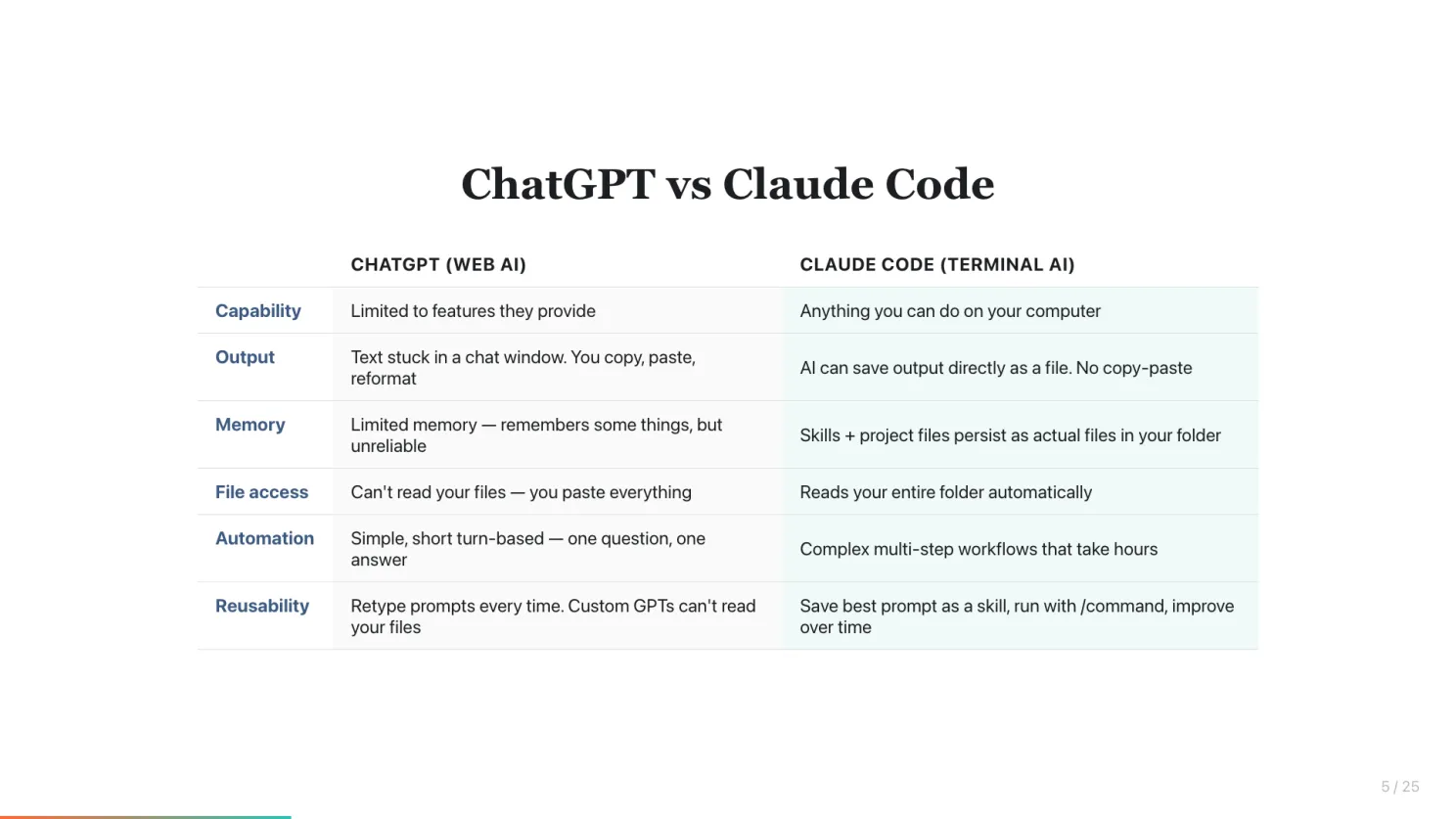
Here’s a side-by-side:
Capability - ChatGPT is limited to features they provide. You work within their box. Claude Code can do anything you can do on your computer. It runs commands, installs tools, builds things, even browses websites.
Output - ChatGPT: output is text stuck in a chat window - you copy, paste into Word, reformat. Claude Code: AI can save output directly as a file in your folder. No copy-paste, no reformatting.
Memory - ChatGPT has limited memory - it remembers some things across chats, but you still re-explain your style, context, and preferences often. Claude Code has skills and project files that persist as actual files. It remembers your style, templates, and past work across sessions - because it reads them from your folder, not from a memory feature that may or may not recall correctly.
File access - ChatGPT can’t read your files or past work automatically. You manually upload or paste everything in. Claude Code searches and reads your entire folder automatically - proposals, templates, notes, everything.
Automation - ChatGPT handles simple, short turn-based tasks - one question, one answer, repeat. Claude Code can run complex, multi-step workflows that take hours - a single /command can read your files, apply your rules, draft, format, and save the output.
Reusability - ChatGPT: you retype or tweak your prompt every time. Custom GPTs exist but can’t read your local files. Claude Code: save your best prompt as a skill file, run it with /command, and improve it over time. Your expertise compounds.
Claude Code Is Not What You Think
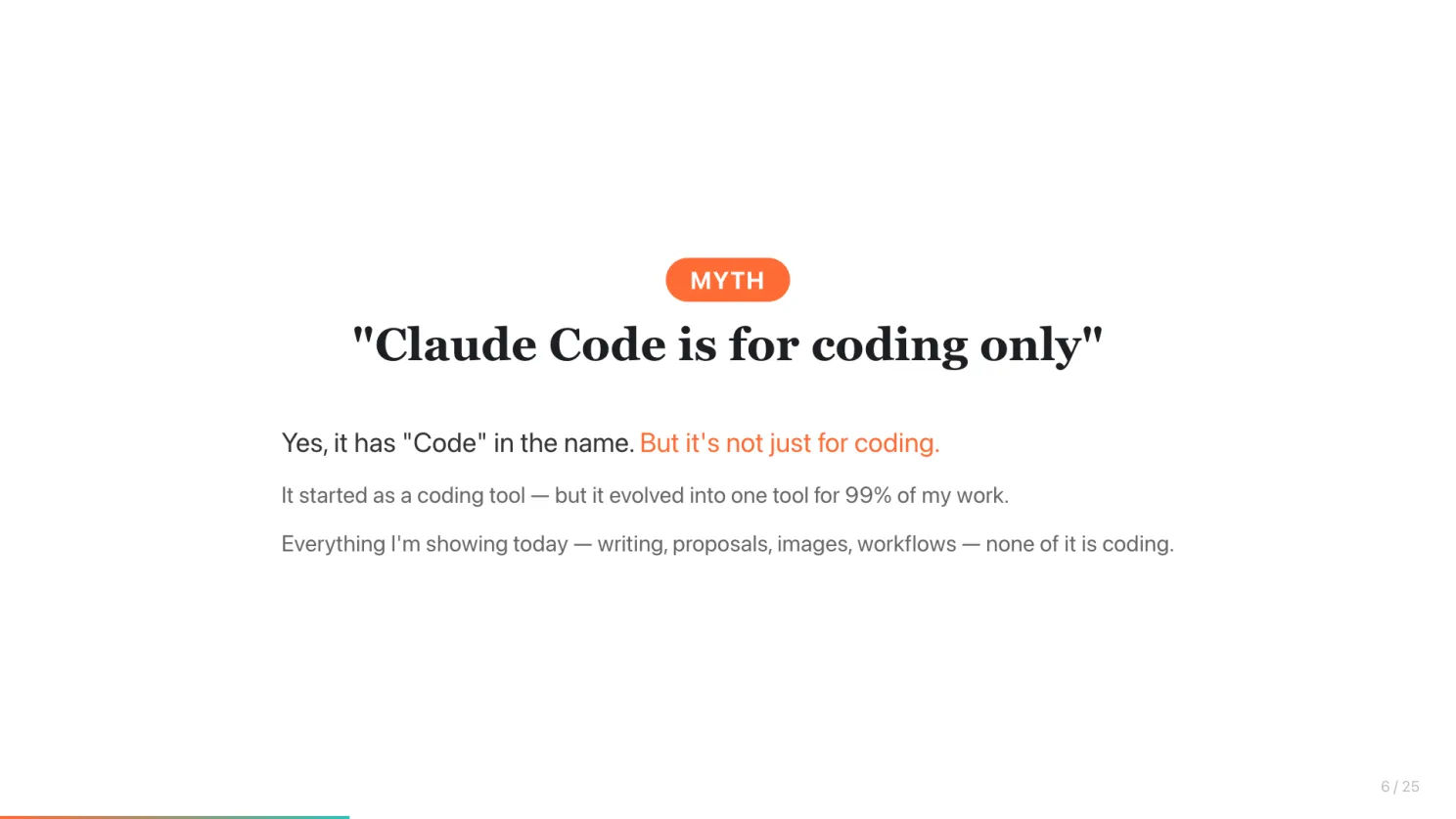
The biggest myth I need to bust: “Claude Code is for coding only.”
Yes, it has “Code” in the name. But it’s not just for coding. It started as a coding tool - but it evolved into one tool for 99% of my work. Everything I showed in the sharing session - writing, proposals, images, workflows - none of it is coding.
Setting Up: It’s Easier Than You Think
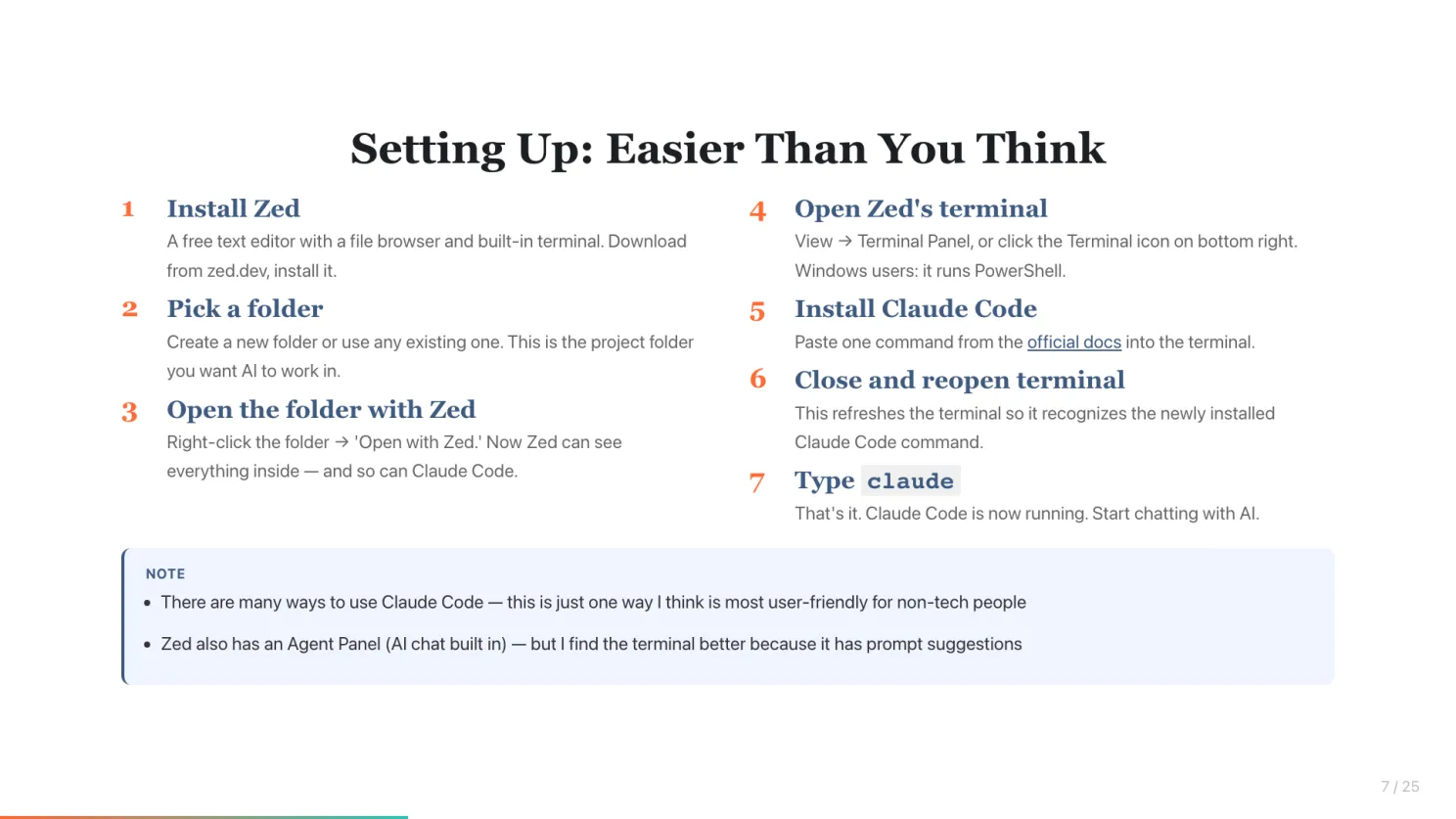
Here’s the setup. Seven steps - but each one is small.
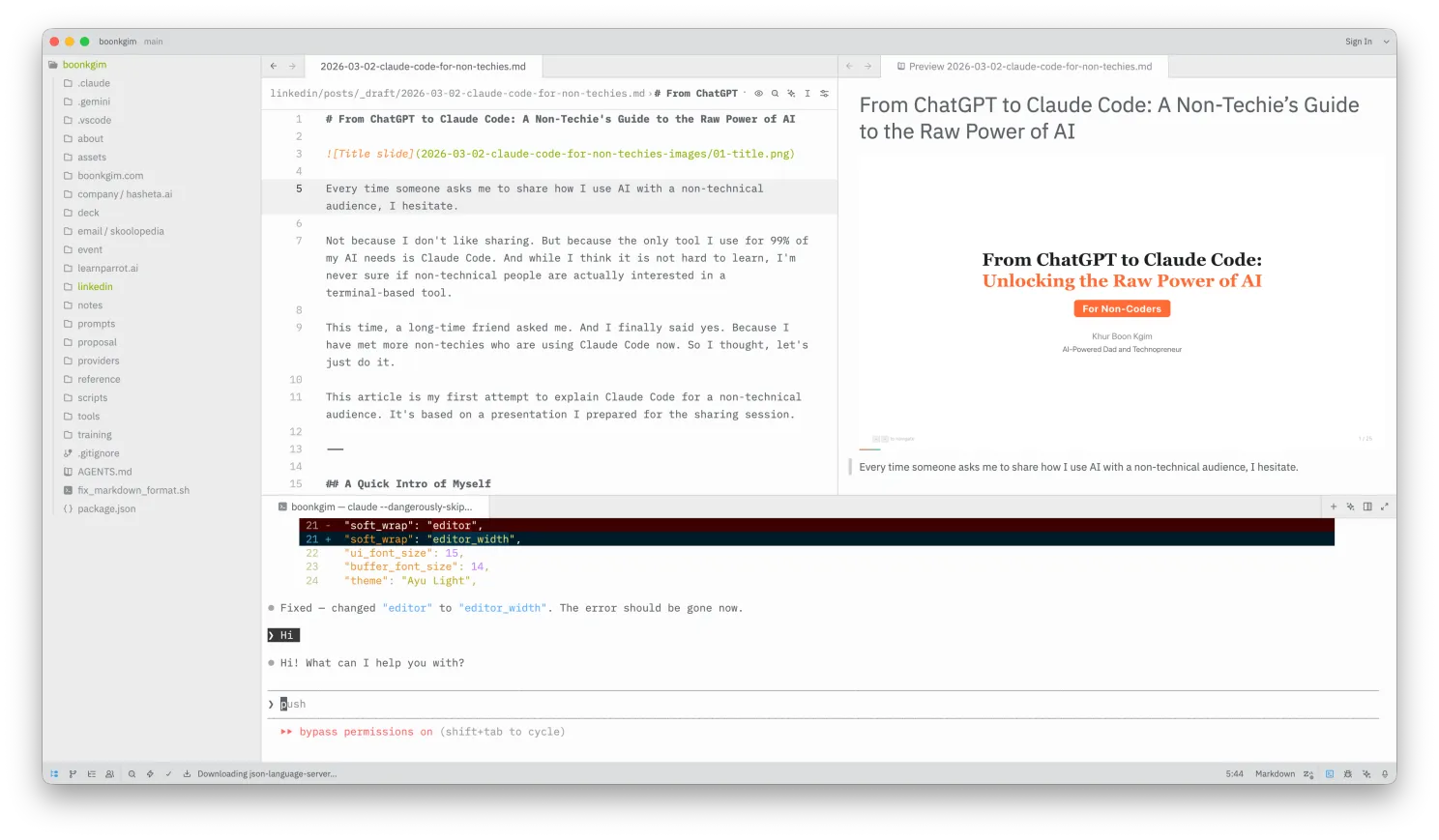
Step 1: Install Zed - a free text editor with a file browser and built-in terminal. Download from zed.dev, install it. I recommend Zed because you can easily view files and browse folders alongside the terminal. You need to see what AI is creating for you.
Step 2: Pick a folder - create a new folder or use any existing one. This is the project folder you want AI to work in — it can read and create files here.
Step 3: Open the folder with Zed - right-click the folder and select “Open with Zed.” Now Zed can see everything inside that folder - and so can Claude Code.
Step 4: Open Zed’s terminal - a terminal is just a text-based way to talk to your computer. Nothing scary. Go to View → Terminal Panel. Or click the Terminal icon on the bottom right. For Windows users, it runs PowerShell - that’s all you need.
Step 5: Install Claude Code - paste the one-line command from the official docs into the terminal.
Step 6: Close and reopen the terminal - this refreshes the terminal so it recognizes the newly installed Claude Code command.
**Step 7: Type **claude - that’s it. Claude Code is now running. You can start chatting with AI.
Zed also has an Agent Panel (AI chat built in) - but I find the terminal better because it has prompt suggestions. AI suggests the next prompt to use, you just press Tab + Enter.
There are many ways to use Claude Code. This is just one way I think is most user-friendly for non-tech people
From Web Chat to Terminal: What Actually Changes?
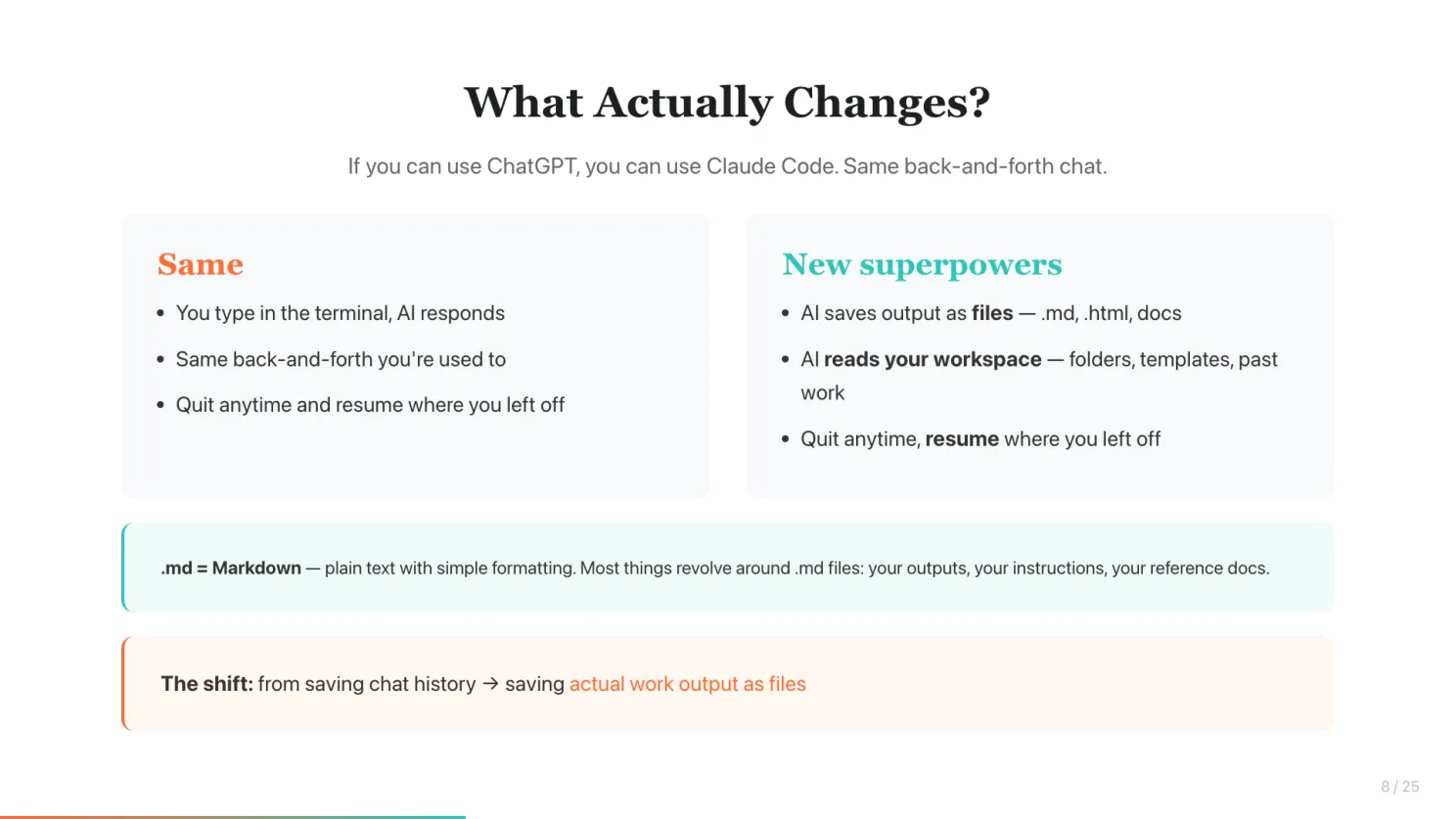
If you can use ChatGPT, you can use Claude Code.
The chat experience is the same - you type, AI responds. Same back-and-forth you’re used to. You can quit anytime and resume where you left off.
So what’s actually new?
- You can save output as files - just tell Claude to save it. It can be any kind of file: plain text, markdown, HTML, and more. The work lives where your work lives, not stuck in a chat window.
- AI sees your workspace - in web AI, the AI is blind (only knows what you paste). In Claude Code, it reads your files, folders, and project context automatically.
Markdown files (end with .md) are plain text files with simple formatting. You’ll see them a lot — your skill files and CLAUDE.md are all .md files.
The fundamental shift: from saving chat history to saving actual work output as files.
Non-Coding Use Cases: Things You Already Do
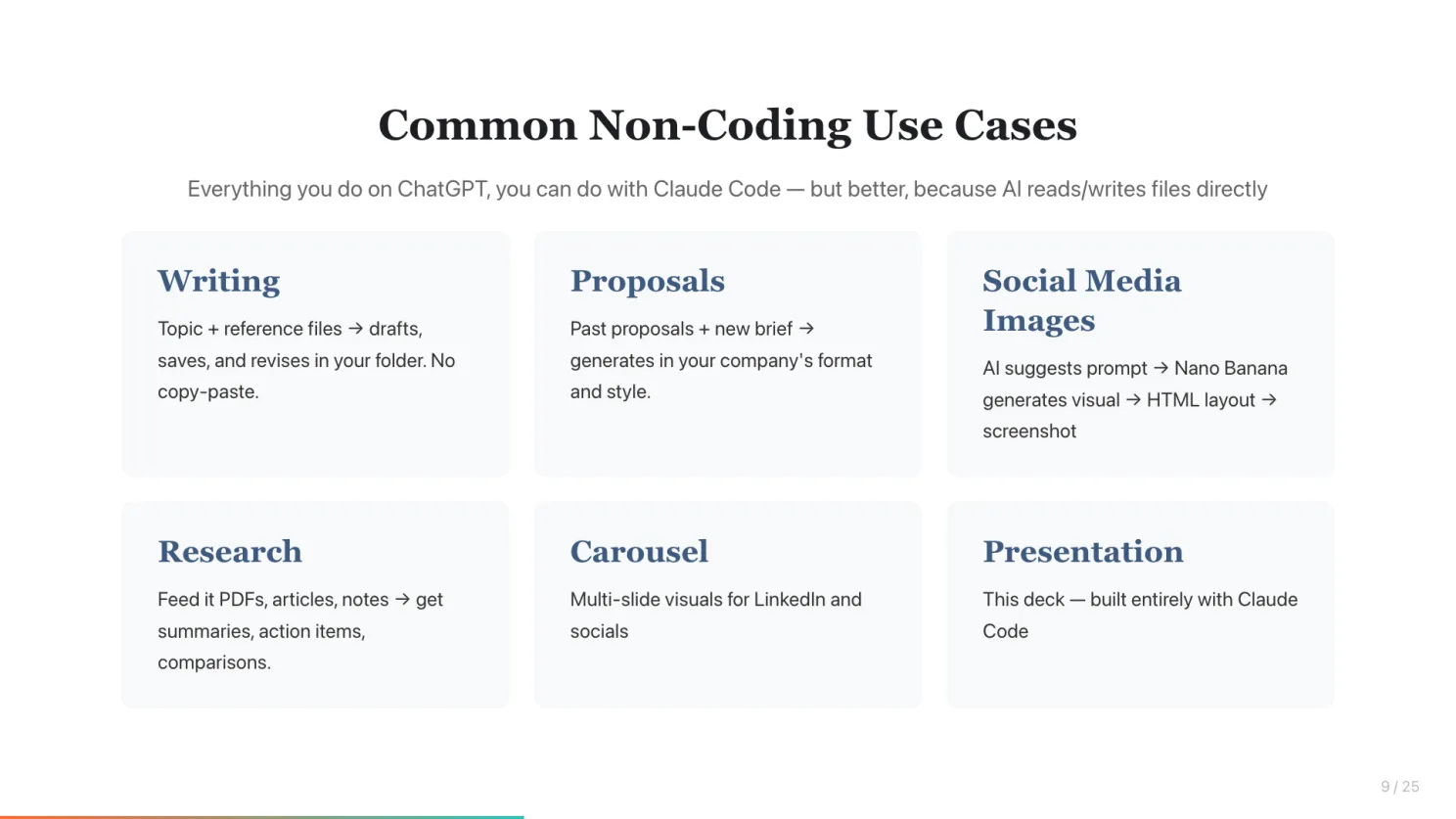
Everything you do on ChatGPT, you can do with Claude Code - but better, because it reads and writes files directly.
Writing articles and blog posts - give it a topic plus reference files, it drafts, saves, and revises in your folder. No more copy-paste between browser and Word.
Creating proposals and documents - give it past proposals plus a new brief, it generates new ones in your company’s format and style. It can read templates and fill them in.
Social media images - use Claude Code to suggest a cover image prompt, generate the visual with Nano Banana (or similar), then layout with HTML and screenshot.
Research and summarization - feed it PDFs, articles, or meeting notes, get summaries, action items, comparisons.
Carousels - multi-slide visuals for LinkedIn and socials.
Presentations - the presentation deck for this very sharing session was built entirely with Claude Code.
What Is a Skill? And What Is CLAUDE.md?
You just saw what Claude Code can do. But what if you do these things every week? That’s where skills come in.
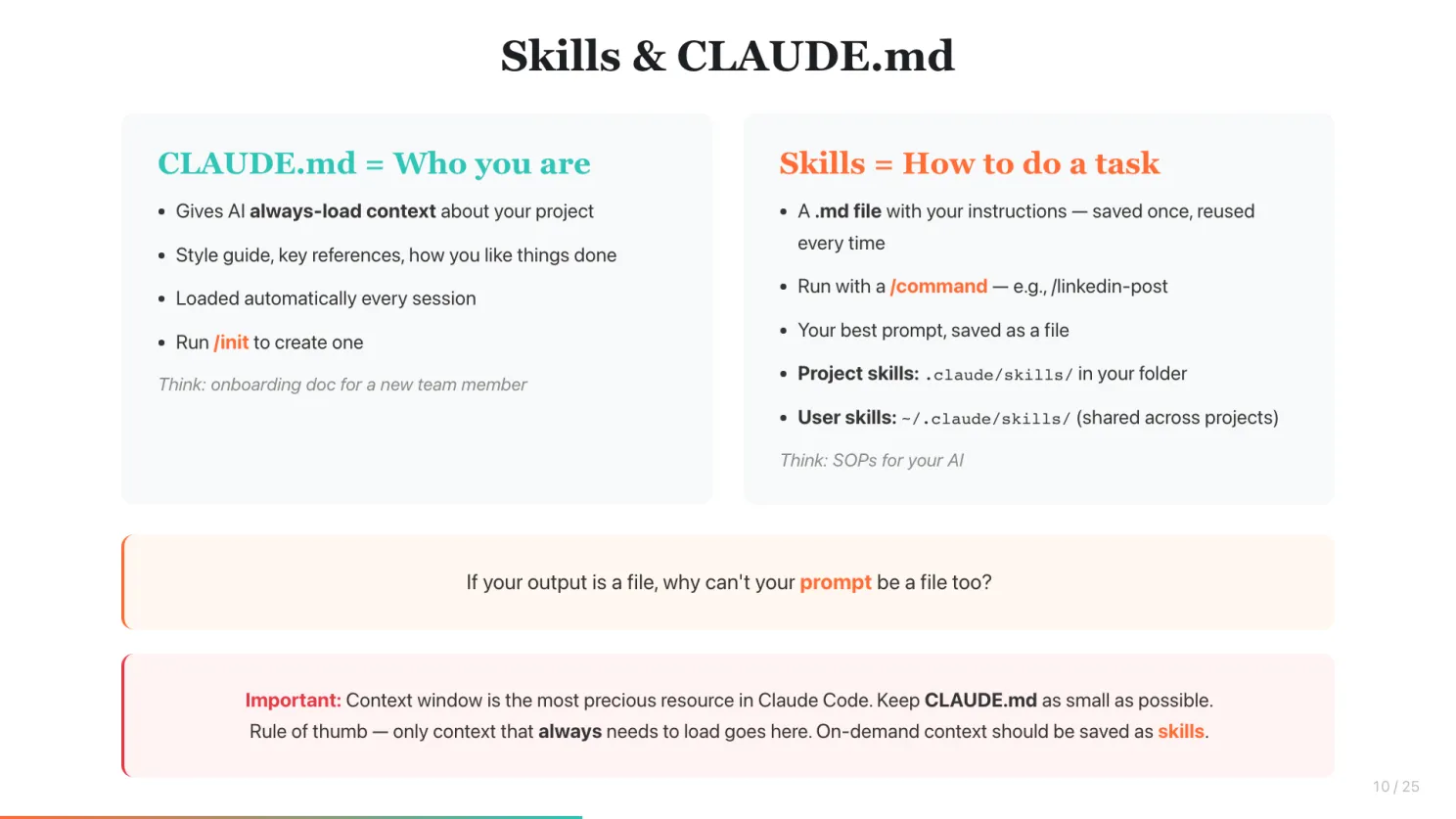
A skill is just a .md file with your instructions inside - saved once, reused every time. You run it with a /command (e.g., /linkedin-post, /weekly-report). Think of it as your best prompt, saved as a file, so you never have to rewrite it. Skills live in two places: project skills in .claude/skills/ inside your folder, and user skills in ~/.claude/skills/ shared across all projects.
If your output is a file, why can’t your prompt be a file too?
And then there’s CLAUDE.md - your project memory. It’s a file that gives AI permanent context about your project: key commands, style guide, important references, how you like things done. It’s loaded automatically every session. Run /init inside Claude Code to create one.
Think of it this way: CLAUDE.md is the onboarding doc for a new team member. Skills are the SOPs.
Important: Context window is the most precious resource in Claude Code. Keep CLAUDE.md as small as possible. Rule of thumb — only context that always needs to load goes here. On-demand context should be saved as skills.
3 Ways to Create a Skill
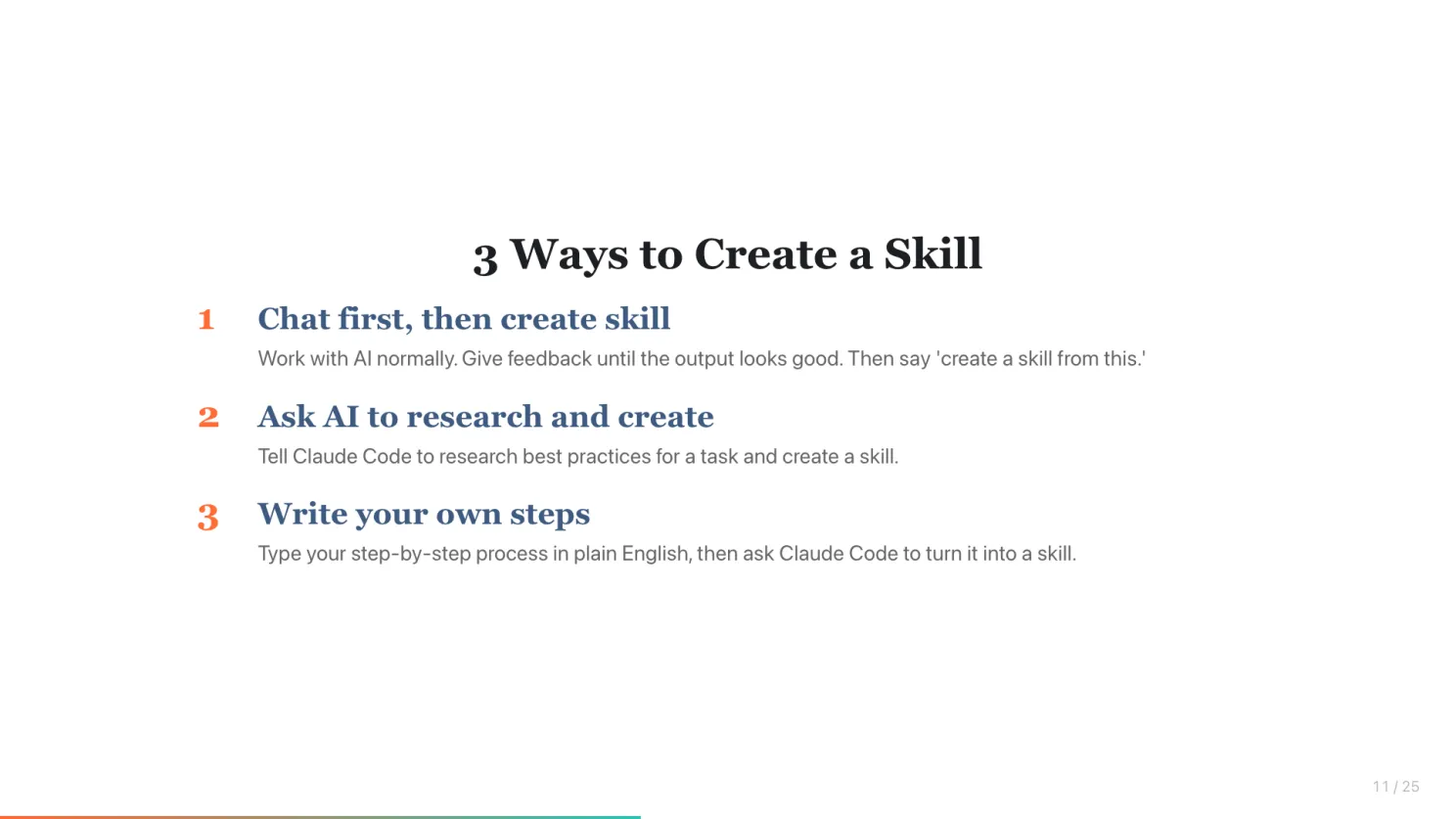
You don’t need to be technical. Pick whichever way feels natural:
-
Chat first, then convert - work with AI the normal way. Give feedback until the output looks good. Then say “create a skill from this.” Done.
-
Ask AI to research and create - tell Claude Code to research best practices for a task (e.g., “research best practices for LinkedIn posts and create a skill”). It does the research and writes the skill for you.
-
Write your own steps - type out your step-by-step process in plain English, then ask Claude Code to turn it into a skill. Your expertise, your process, your rules.
The Feedback Loop: Improving Your Skill Over Time
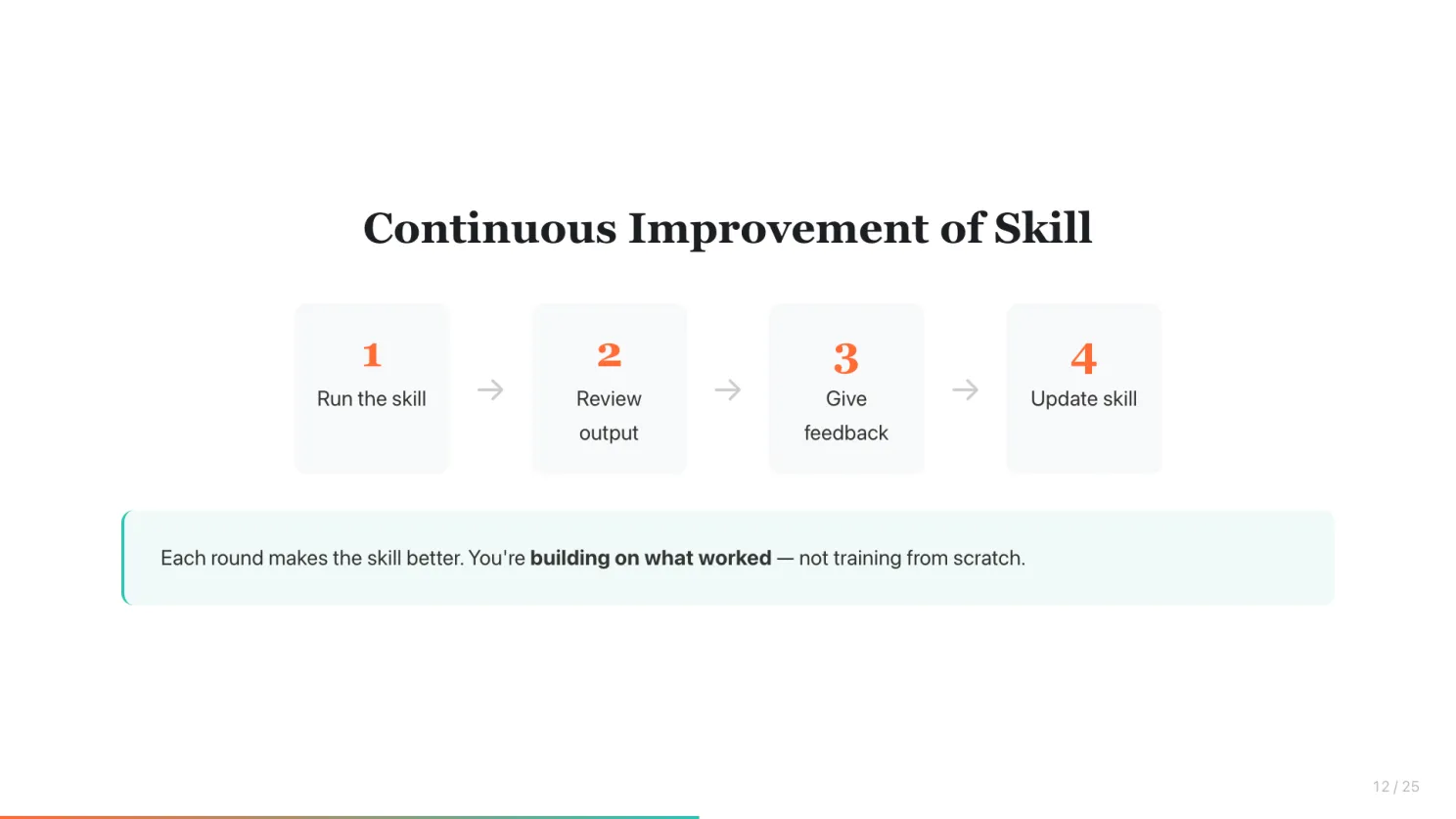
Run the skill. Review the output. Give feedback. Update the skill.
Each round makes the skill better - it learns your preferences. You’re not training from scratch every time. You’re building on what worked.
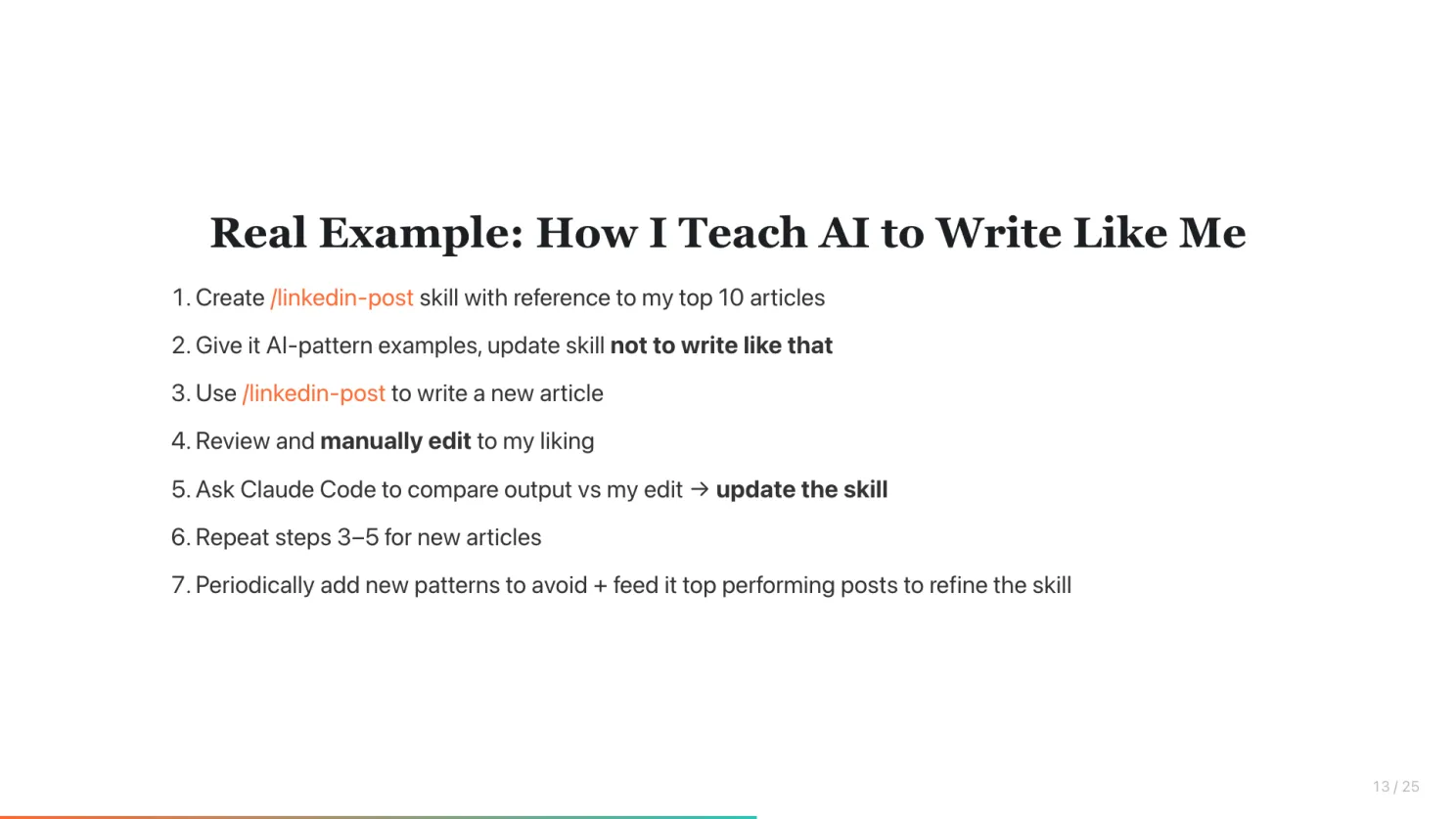
Real Example: How I Teach AI to Write Like Me
This is my actual process for LinkedIn posts:
- I asked Claude Code to create a /linkedin-post skill with reference to my top 10 articles
- I gave it common AI-pattern examples and asked it to update the skill not to write like that
- I use /linkedin-post to write a new article
- I review and manually edit the article to my liking
- I ask Claude Code to compare the output and my final edit, then update /linkedin-post
- Repeat steps 3-5 for new articles
- Once in a while, I update it with new patterns to avoid and give it new top performing posts to analyse and refine the skill
The skill keeps getting better. It’s not perfect - I still edit every single post. But the starting point gets closer to my voice each time.
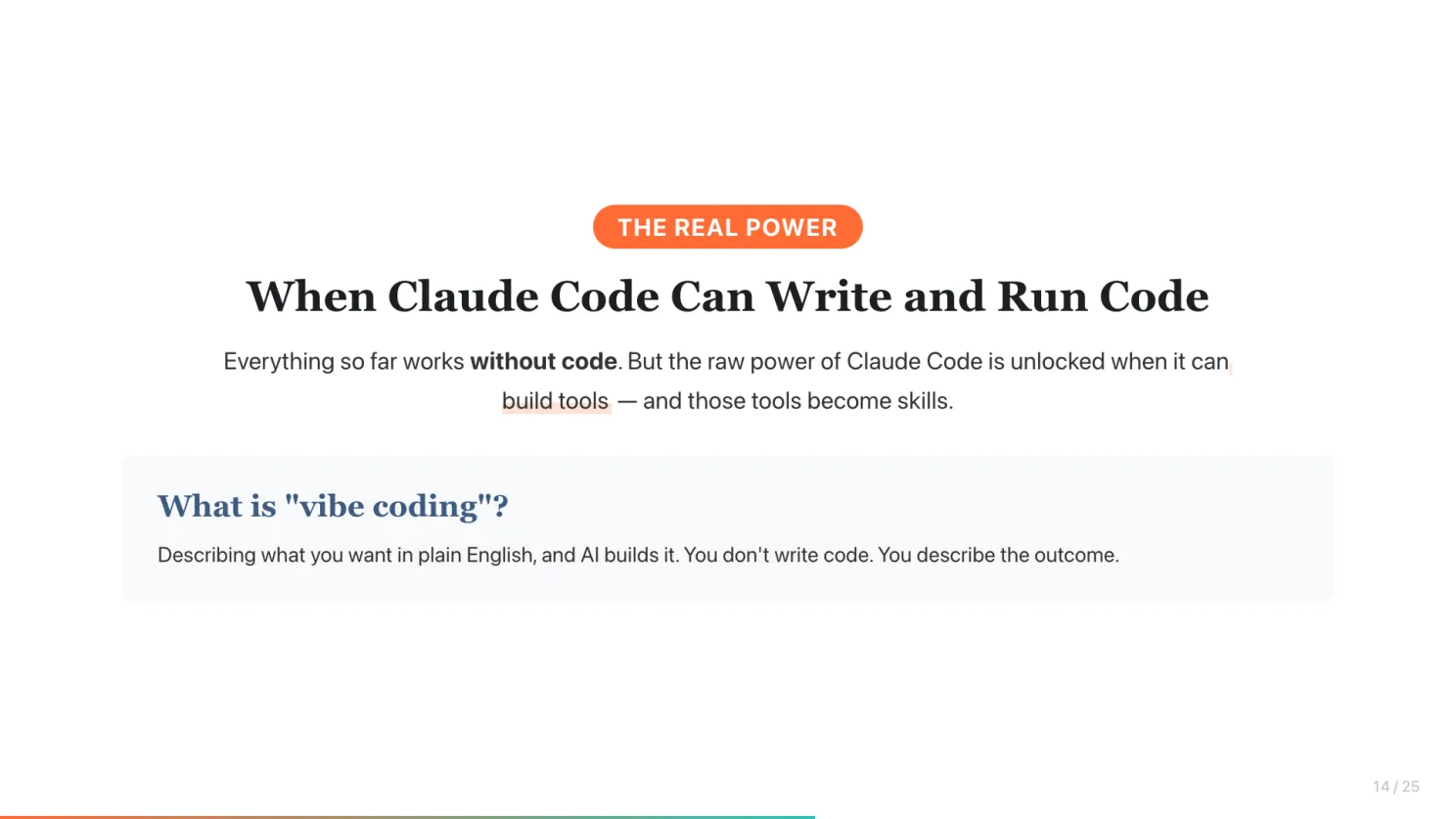
The Real Power: When Claude Code Can Write Code
Everything I’ve shown so far works without writing code. But the raw power of Claude Code is unlocked when it can build tools for you - and those tools become skills.
This is called “vibe coding” - describing what you want in plain English, and AI builds it. You don’t write code. You describe the outcome.
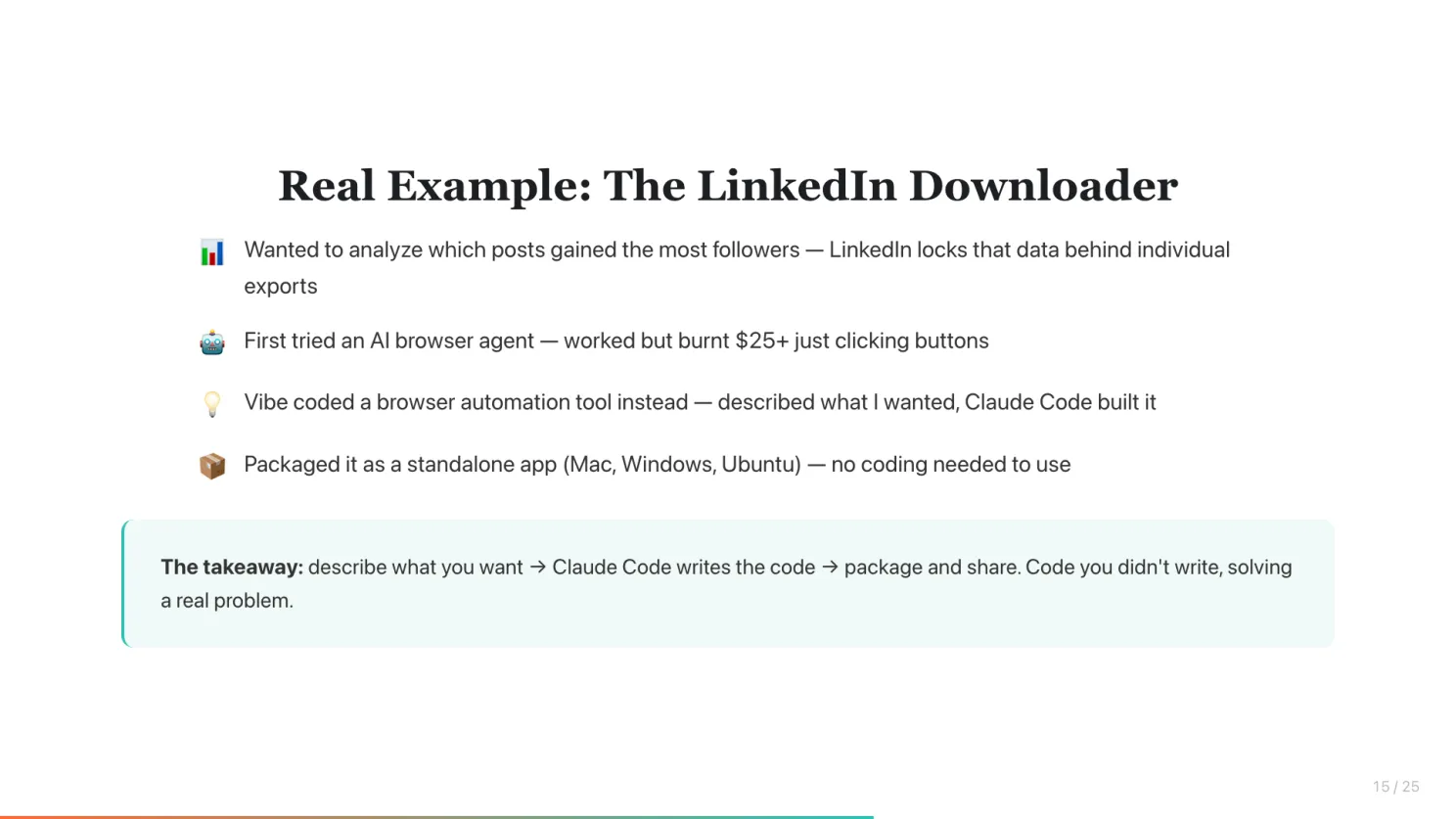
**Real example: **The LinkedIn Downloader
I wanted to analyze which of my LinkedIn posts gained the most followers and saves. But LinkedIn locks that data behind individual post exports. 60+ posts = 60+ manual downloads.
First I tried an AI browser agent. It worked - but burnt $25+ just clicking buttons. The task is completely deterministic, no AI needed for the clicking part.
So I vibe coded a browser automation tool with Claude Code instead. I described what I wanted. Claude Code built it. It scrolls through posts, clicks export on each one, downloads all the xlsx files, combines everything into one CSV.
Then I packaged it as a standalone app for Mac, Windows, and Ubuntu. No coding or setup needed for anyone to use it.
You build a tool by describing what you want. Claude Code writes the code. You package it and share it. Code you didn’t write, solving a real problem.
The Future: Humans Orchestrating AI Agents
I think this is where things are heading.
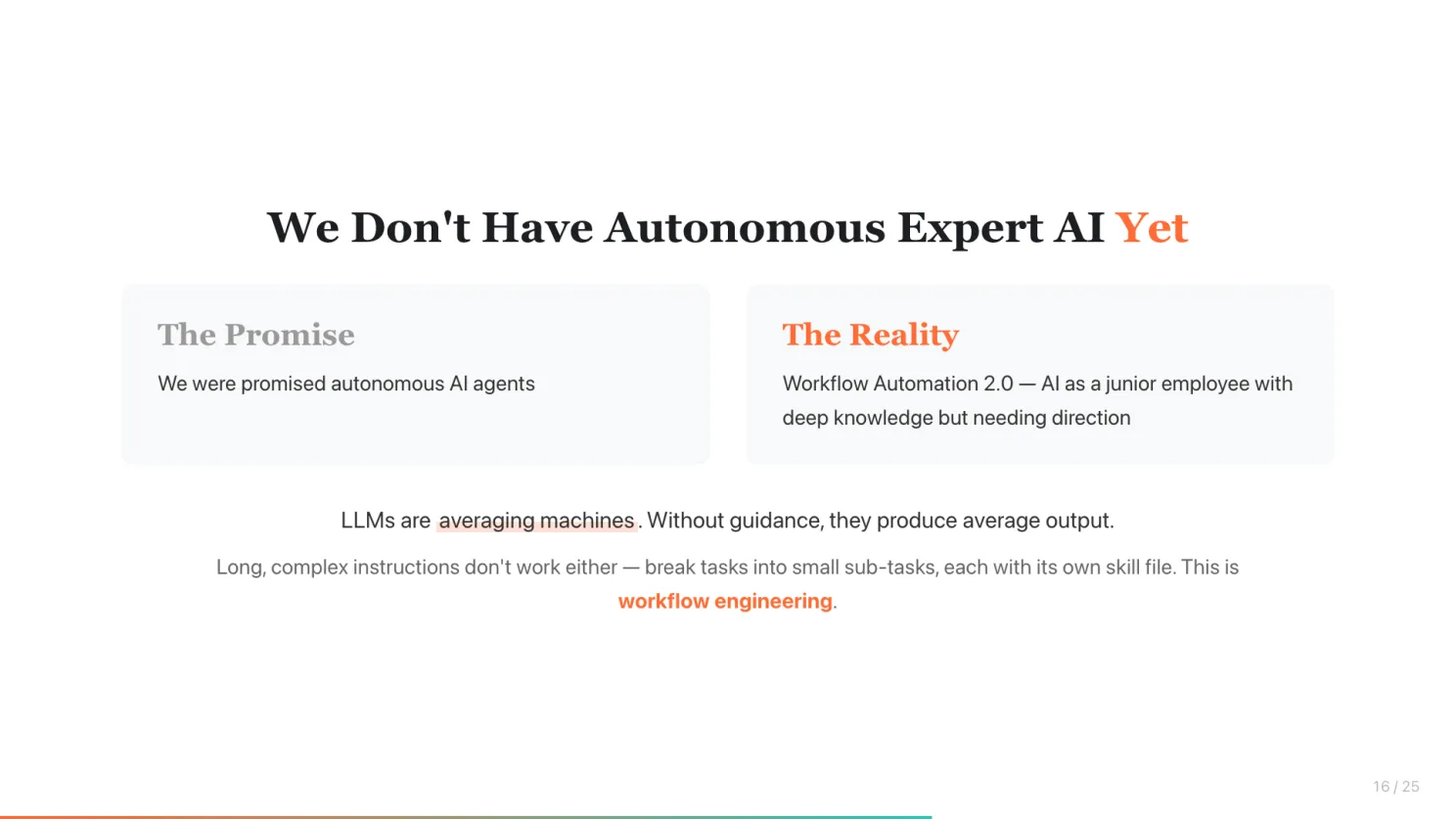
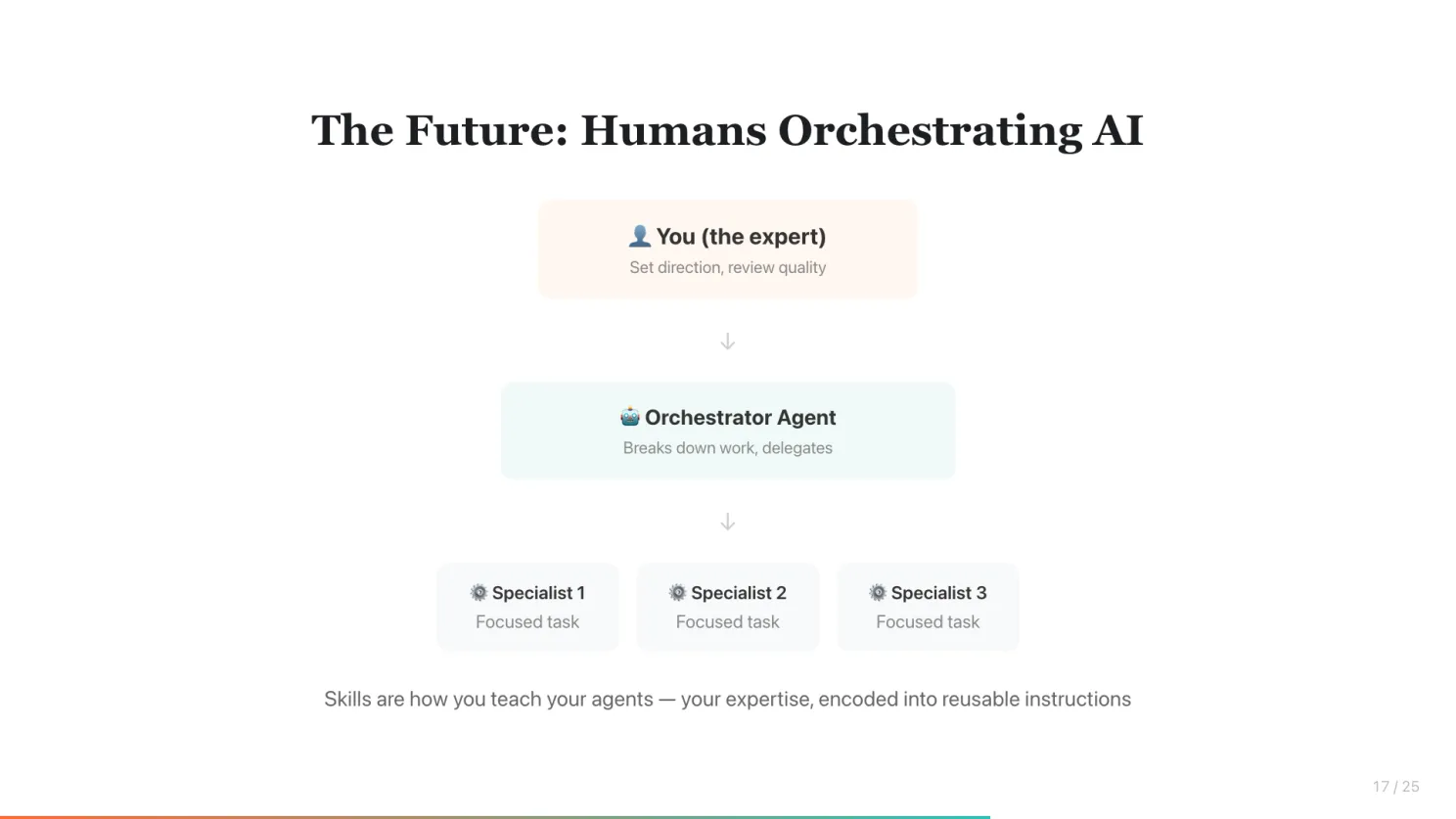
We don’t have autonomous expert AI yet. We were promised autonomous AI agents, but what we actually got is Workflow Automation 2.0. LLMs are averaging machines. Without guidance, they produce average output - like a junior employee who has deep knowledge but still needs direction and review.
Giving AI a long, complex instruction doesn’t work either - it hallucinates. You need to break tasks into small sub-tasks, each with its own skill file. This is workflow engineering, and I think it matters more than prompt engineering.
The future of organizations, in my opinion: not “AI replaces people” - it’s humans orchestrating and managing AI agents. Each expert becomes a manager of their own AI agents. You set the direction, review the output, and guide the quality.
AI agents also have a hierarchy, just like human teams. Due to context limits, you need an orchestrator agent that breaks down work and delegates to executor agents, each handling a focused piece. Think of it like a team: you’re the director, the orchestrator is your project manager, and the executor agents are your specialists.
Skills are how you teach your agents. Your expertise, encoded into reusable instructions.
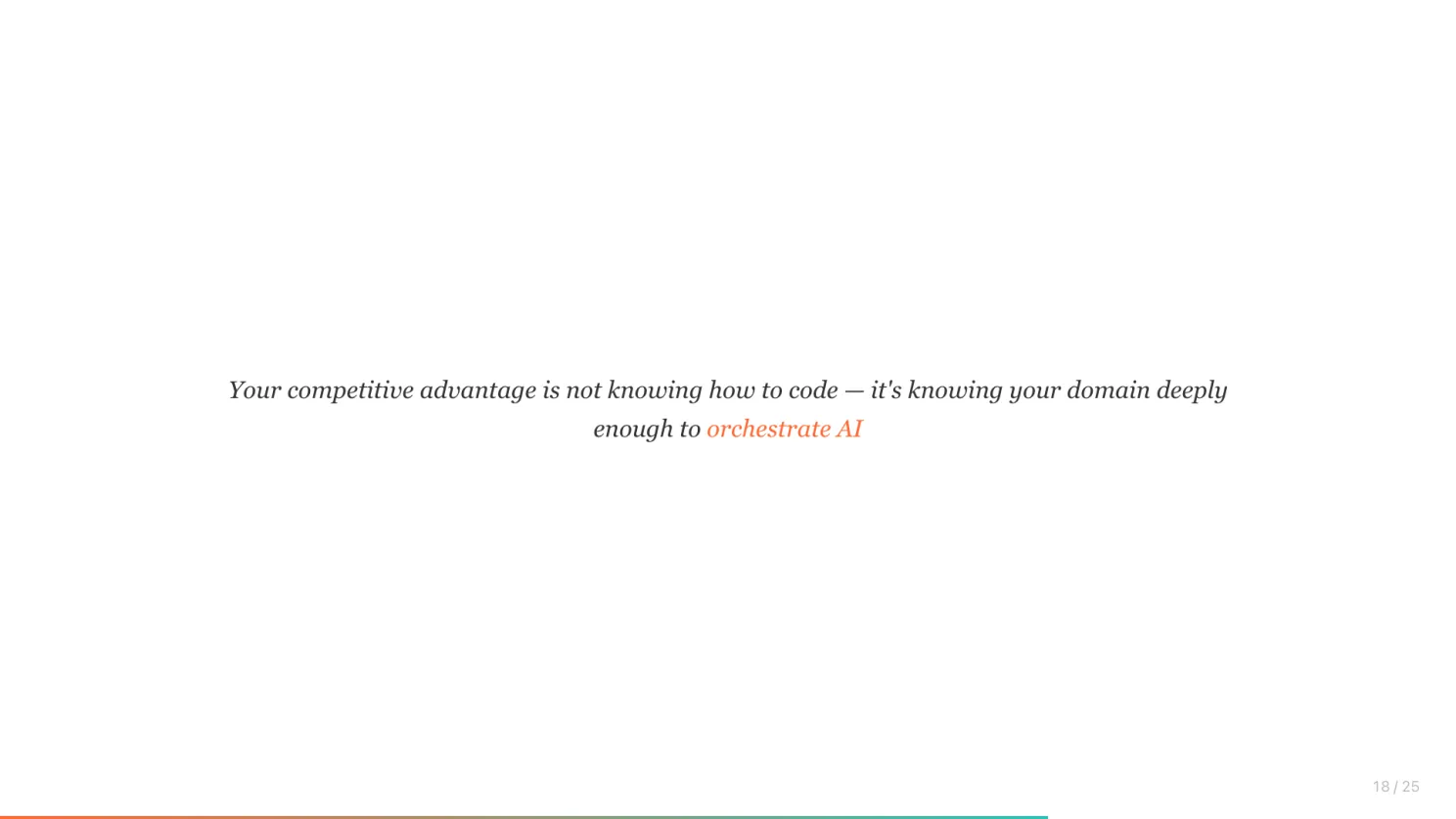
Your competitive advantage is not knowing how to code. It’s knowing your domain deeply enough to orchestrate AI.
Practical Tips for Getting Started
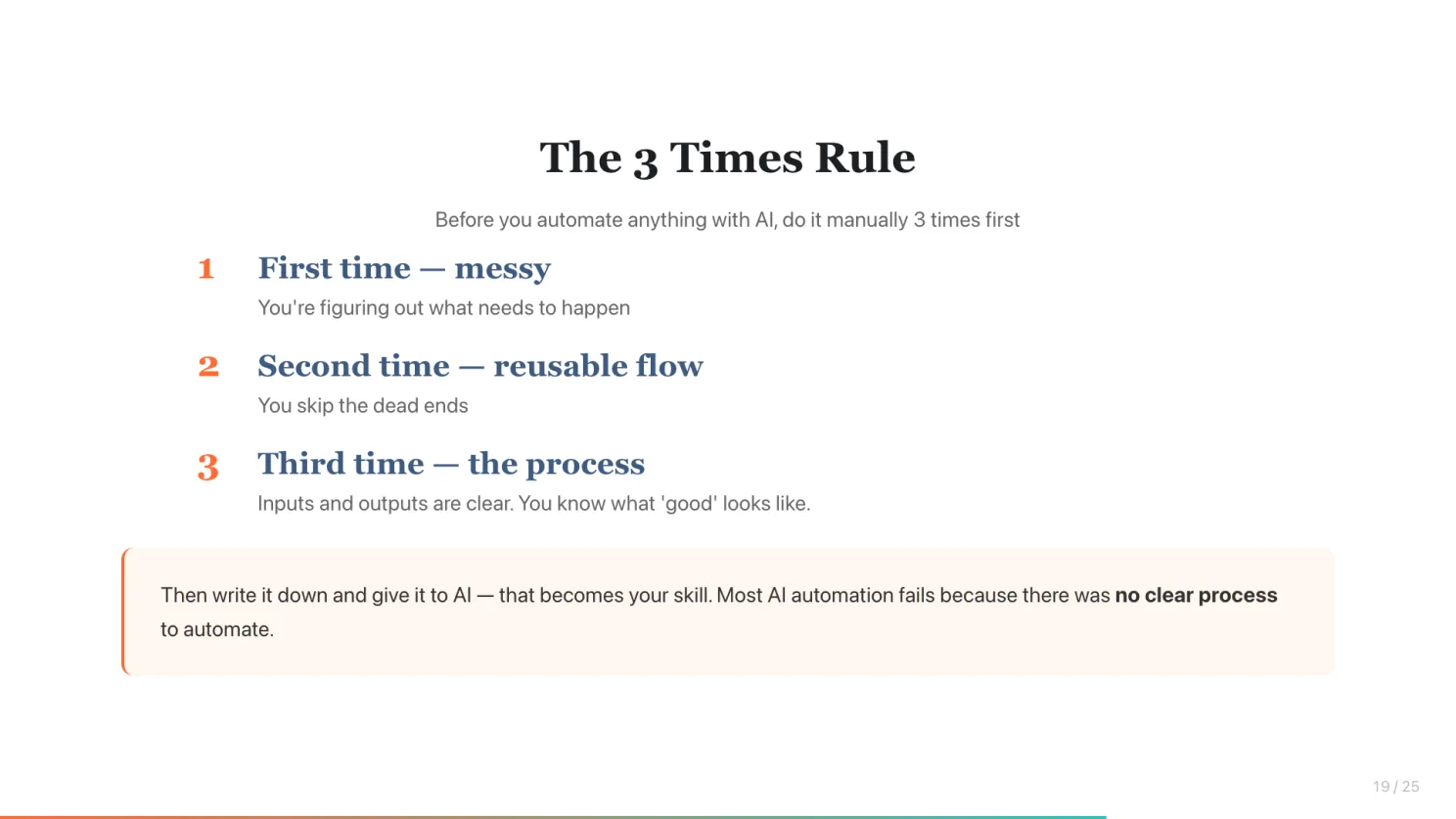
The 3 Times Rule - before you automate anything with AI, do it manually 3 times first.
- First time - messy. You’re figuring out what needs to happen.
- Second time - you find a reusable flow. You skip the dead ends.
- Third time - you find the process. Inputs and outputs are clear. You know what “good” looks like.
Then write it down and give it to AI. That becomes your skill. Most AI automation fails not because of AI, but because there was no clear process to automate.
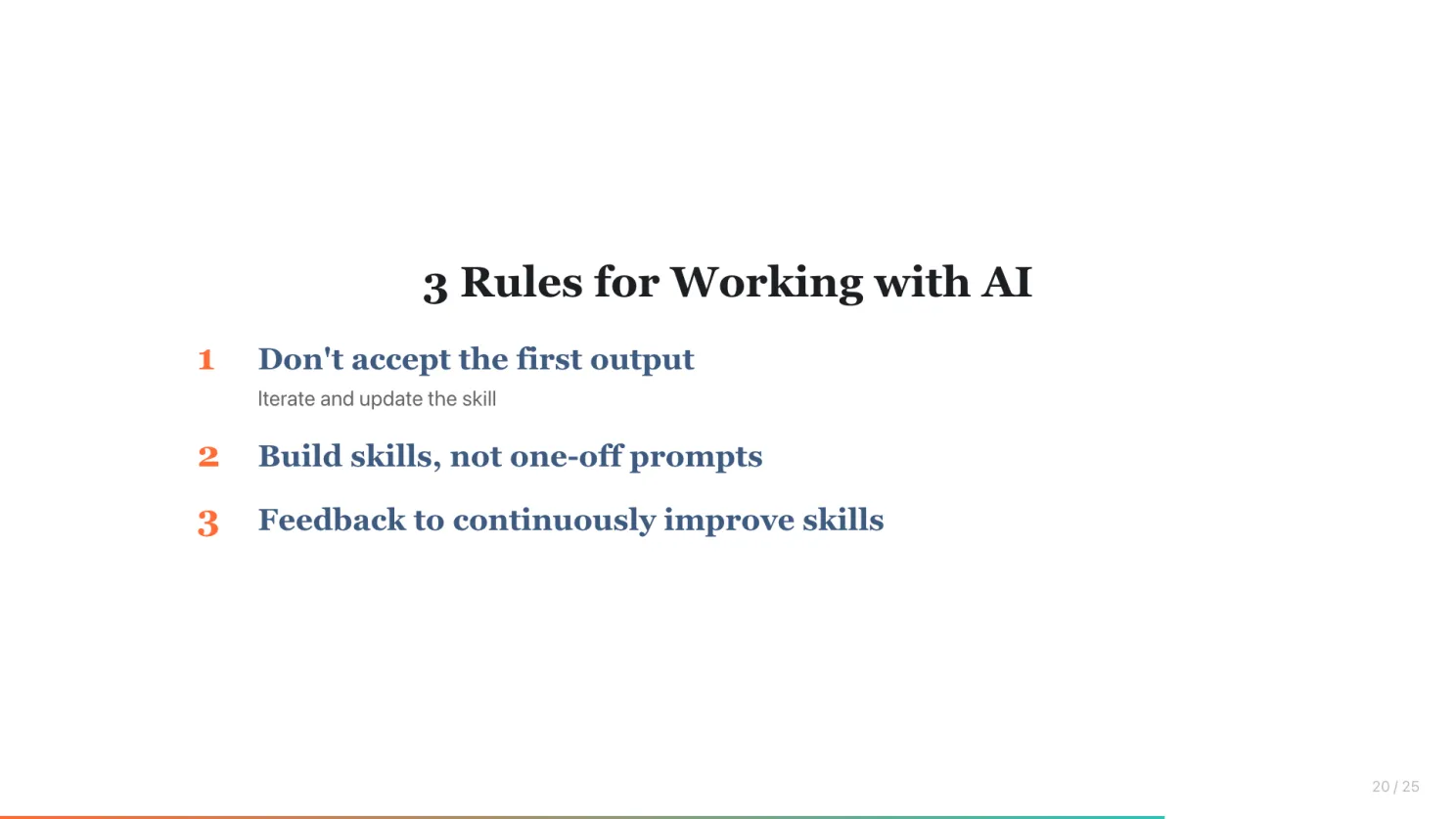
The 3 Rules:
-
Don’t accept the first output - iterate and update the skill
-
Build skills, not one-off prompts
-
Give feedback to continuously improve skills
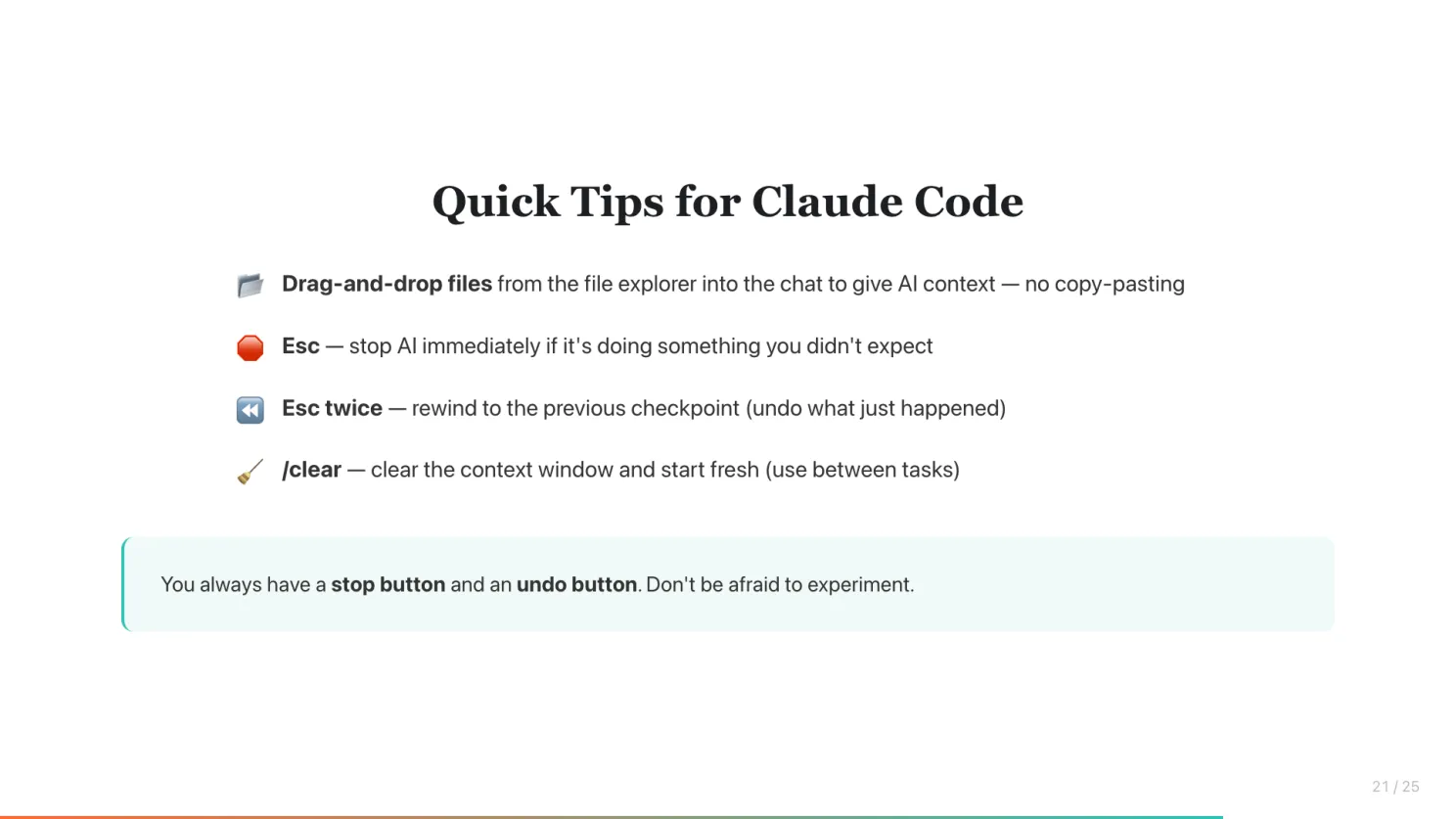
Quick Tips for Claude Code:
- Drag-and-drop files from the file explorer into the chat to give AI context
- Esc - stop AI immediately if it’s doing something you didn’t expect
- Esc twice - rewind to the previous checkpoint (undo)
- /clear - clear the context window and start fresh between tasks
You always have a stop button and an undo button. Don’t be afraid to experiment.
What Doesn’t Work Yet
Before you dive in, here’s what to watch out for - so you don’t hit the same walls I did.
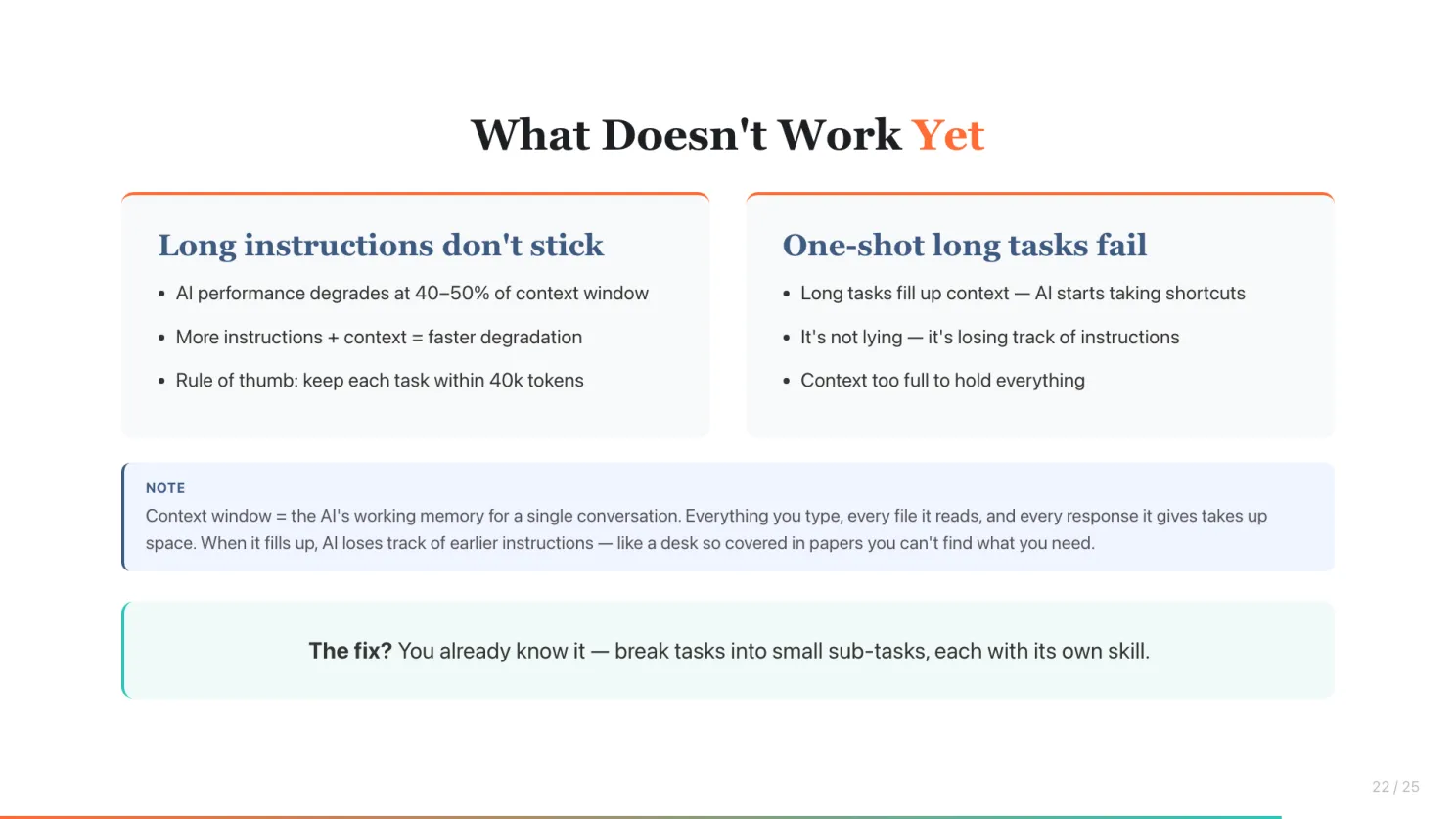
Context window - the AI’s working memory for a single conversation. Everything you type, every file it reads, and every response it gives takes up space. When it fills up, AI loses track of earlier instructions. Like a desk so covered in papers you can’t find what you need.
Long instructions don’t stick - AI performance degrades at 40-50% of the context window. The more instructions and context you give in one go, the faster it fills up. At 80k tokens of context, I got poor instruction-following, hallucinations, and AI telling me a task is completed when it clearly isn’t. My rule of thumb: keep each task within 40k tokens of context.
One-shot long tasks fail - giving AI a detailed plan and a long-running task, then expecting it to finish reliably, doesn’t work. A long task fills up the context window. Once it degrades, AI starts taking shortcuts and claiming it’s done when it isn’t. It’s not lying - it’s losing track of what it was supposed to do, because the context is too full to hold all the instructions.
The fix? You already know it. Break tasks into small sub-tasks, each with its own skill.
Other Good Things to Learn
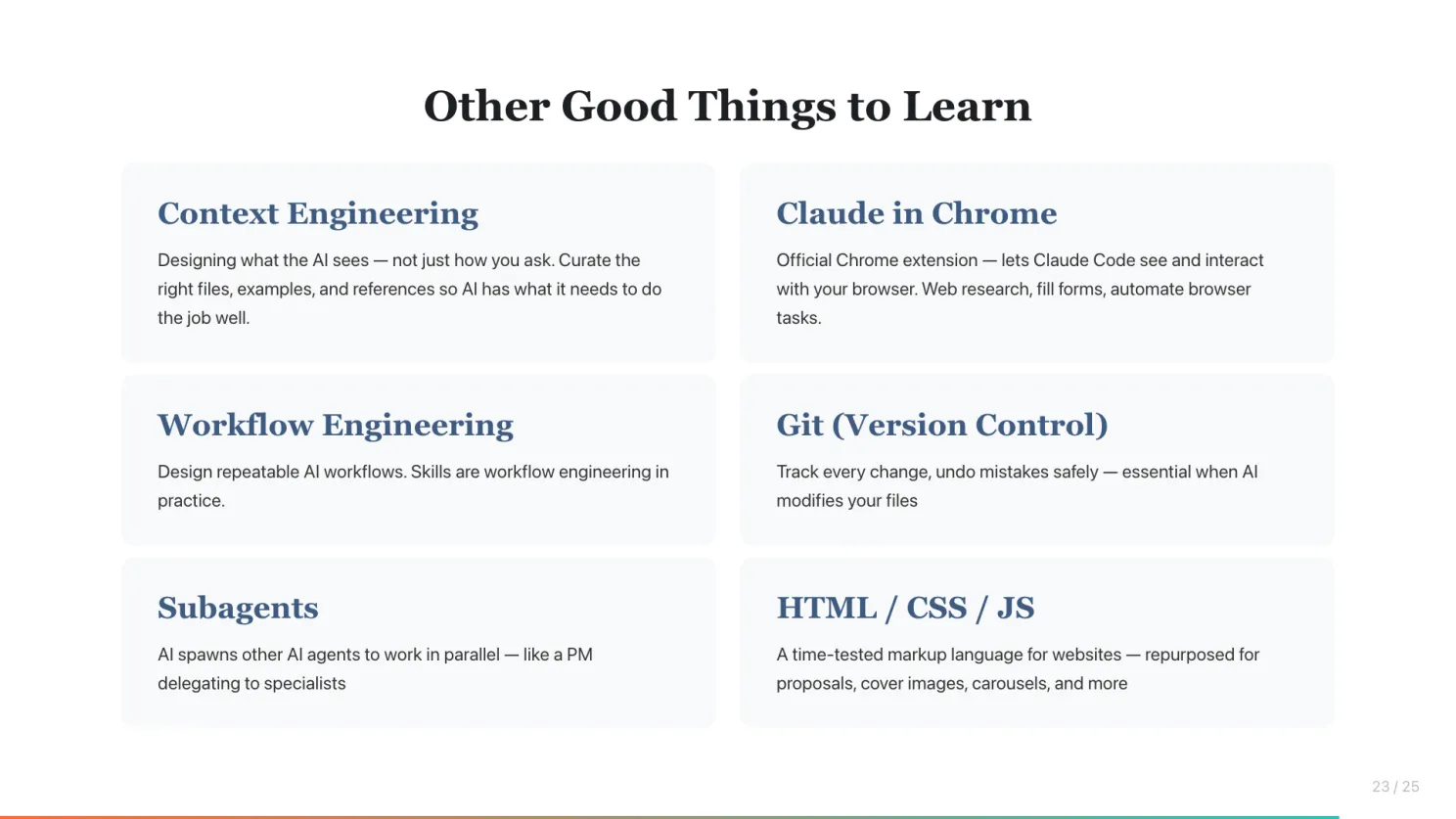
Once you’re comfortable with skills, these are the next-level concepts to explore:
-
Context engineering - designing what the AI sees, not just how you ask. Curate the right files, examples, and references.
-
Workflow engineering - design repeatable AI workflows. Skills are workflow engineering in practice.
-
Subagents - have your AI spawn other AI agents to work in parallel. One orchestrator breaks down the work, multiple executors handle the pieces simultaneously.
-
Git (version control) - track every change to your work and undo mistakes safely. Essential when AI is making changes to your files.
-
Claude in Chrome - an official Chrome extension that lets Claude Code see and interact with your browser. Web research, fill forms, automate browser tasks.
-
HTML/CSS/JS - you don’t need to learn to code. But knowing what’s possible with HTML lets you ask for proposals, cover images, carousels, presentations, and more.
Key Takeaway
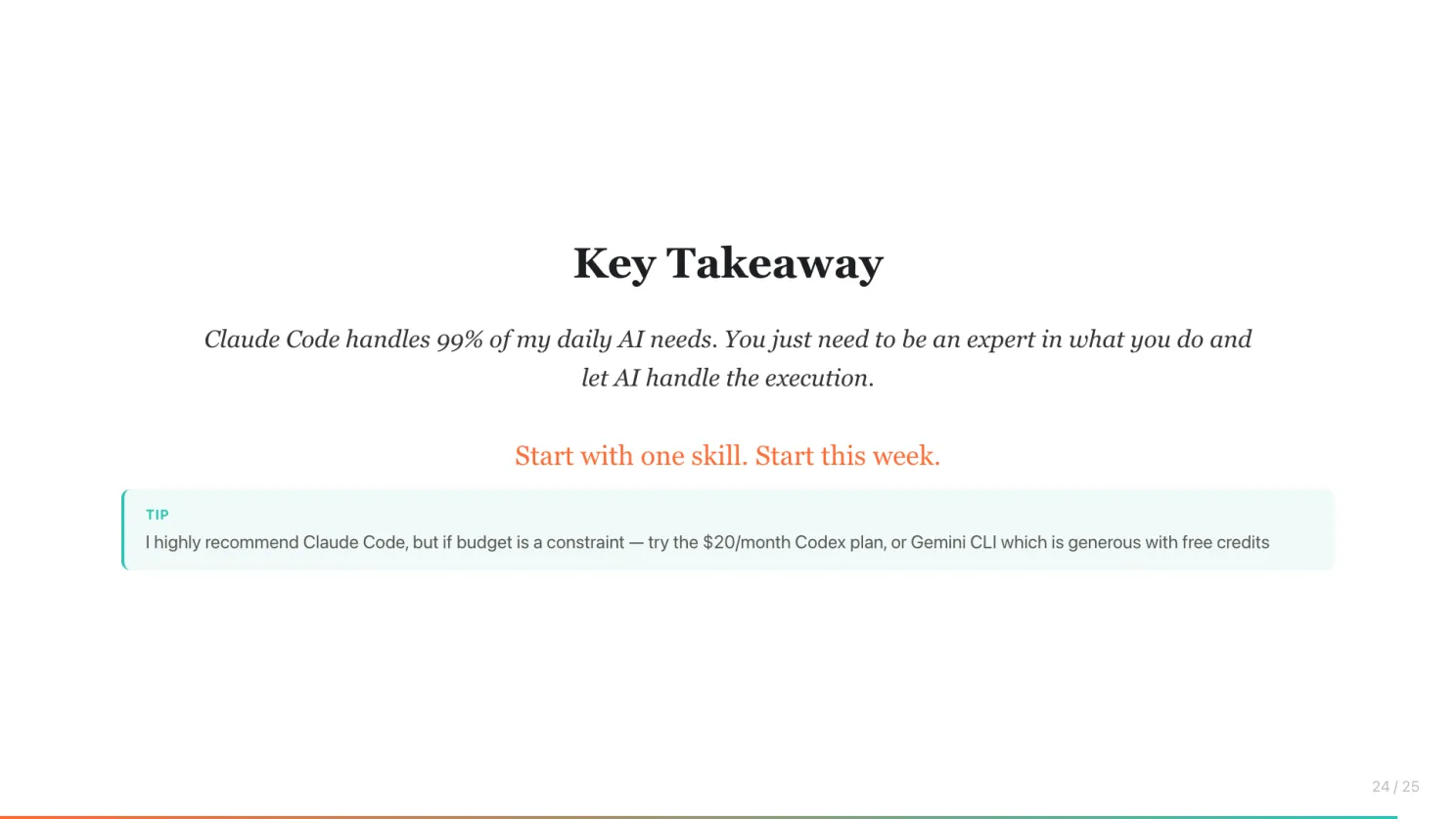
Claude Code handles 99% of my daily AI needs. The only exception is image generation.
You just need to be an expert in what you do and let AI handle the execution. The people who will thrive are the ones who learn to orchestrate AI with their domain expertise.
Start with one skill. Start this week.
Enjoyed this? Subscribe for more.
Practical insights on AI, growth, and independent learning. No spam.
More in Vibe Coding
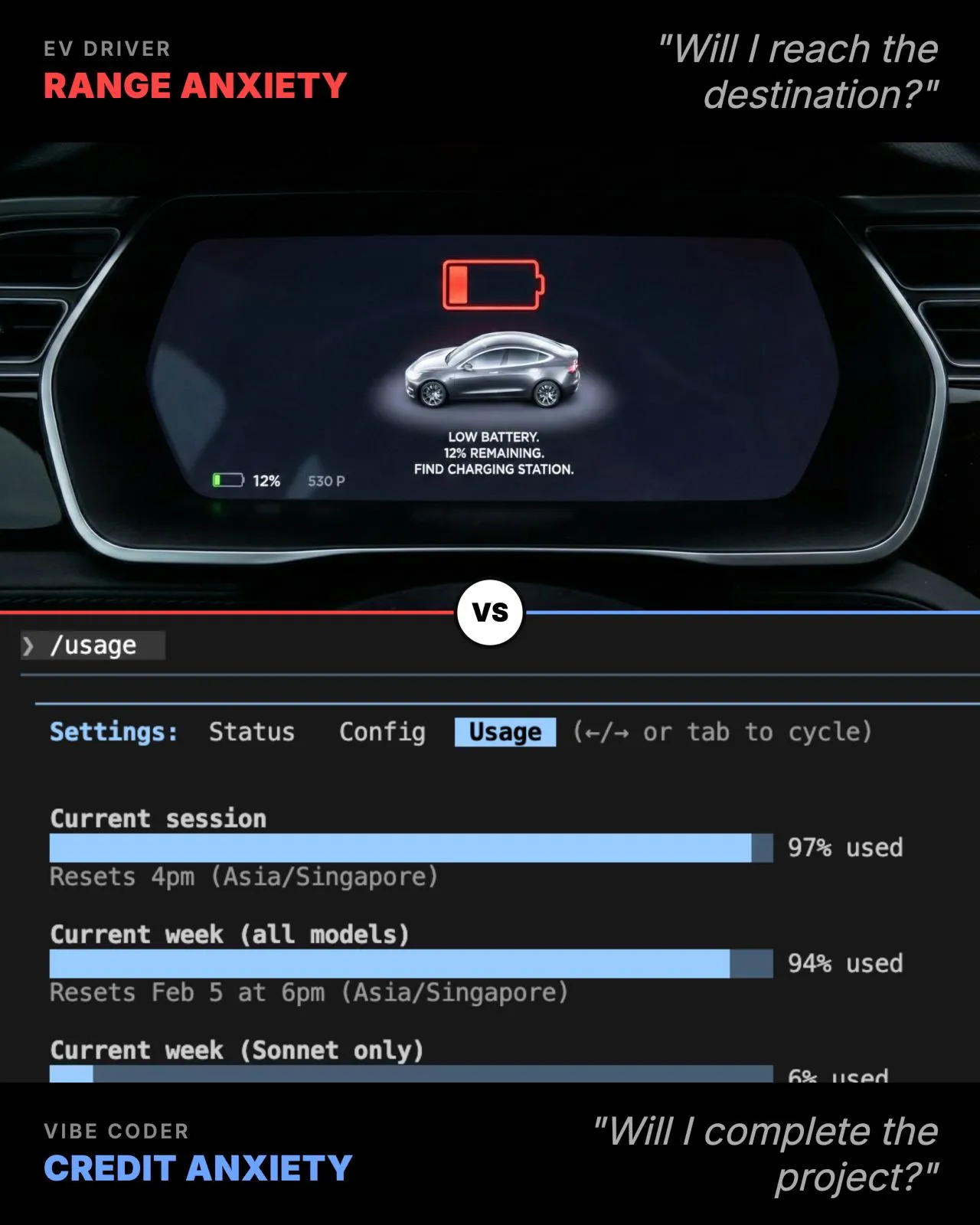
Range vs Credit Anxiety. Anyone? 🤪
If you have read my previous posts, I have shared how Claude Code performance tanks once your code and best practices hit a certain size due to context bloat...

I’m honored to be invited to moderate an insightful roundtable on 𝗘𝗹𝗲𝘃𝗮𝘁𝗶𝗻𝗴 𝗙𝗼𝘂𝗻𝗱𝗮𝘁𝗶𝗼𝗻𝗮𝗹 𝗦𝘆𝘀𝘁𝗲𝗺𝘀 𝗶𝗻 𝘁𝗵𝗲 𝗔𝗜 𝗔𝗴𝗲, hosted by The Ortus Club and MuleSoft — with an exceptional group of tech and data leaders across industries like banking, telco, healthcare, transport, finance, and travel.
We unpacked tough questions on:
How we ranked #1 for "Xiaohongshu Marketing" in 90 days and generated $300K+ revenue since then.
Last year, while visiting China, Terrence Ngu Teck Kong found a new business opportunity for our marketing agency, Xiaohongshu Marketing.
AI can't replace 100% of a human's job.
i.e., once a certain task can be automated with AI agents or workflows, we can scale it with minimal additional cost.
Two Choices for Handling Tech Debt in Vibe Coding
· Go full vibe: ignore tech debt, and when things inevitably break, spend a week fixing it.
Here is the #1 reason why AI can't fully replace humans.
AI can take orders.
Range vs Credit Anxiety. Anyone? 🤪
If you have read my previous posts, I have shared how Claude Code performance tanks once your code and best practices hit a certain size due to context bloat...
AI can't replace 100% of a human's job.
i.e., once a certain task can be automated with AI agents or workflows, we can scale it with minimal additional cost.
Here is the #1 reason why AI can't fully replace humans.
AI can take orders.
I’m honored to be invited to moderate an insightful roundtable on 𝗘𝗹𝗲𝘃𝗮𝘁𝗶𝗻𝗴 𝗙𝗼𝘂𝗻𝗱𝗮𝘁𝗶𝗼𝗻𝗮𝗹 𝗦𝘆𝘀𝘁𝗲𝗺𝘀 𝗶𝗻 𝘁𝗵𝗲 𝗔𝗜 𝗔𝗴𝗲, hosted by The Ortus Club and MuleSoft — with an exceptional group of tech and data leaders across industries like banking, telco, healthcare, transport, finance, and travel.
We unpacked tough questions on:
How we ranked #1 for "Xiaohongshu Marketing" in 90 days and generated $300K+ revenue since then.
Last year, while visiting China, Terrence Ngu Teck Kong found a new business opportunity for our marketing agency, Xiaohongshu Marketing.
Two Choices for Handling Tech Debt in Vibe Coding
· Go full vibe: ignore tech debt, and when things inevitably break, spend a week fixing it.