How Do I Install Claude Code as a Complete Beginner? A Sub-Zero to Hero Guide
2 months ago, a friend asked me what AI tool he should learn.
Two months ago, a friend asked me what AI tool he should learn.
I told him Claude Code. It is what I use for almost everything, coding and non-coding.
He asked how to get started. Easy, I said. Go to the official docs, follow the instructions, less than 5 minutes. We opened the page together, and he stared at the first command, not sure what to do.
That is when I realised why most non-coders can’t get started with Claude Code.
Why the Docs Leave Non-Coders Stuck
The docs are written for developers. They assume three things a non-coder doesn’t have:
- That you know what Terminal (Mac) or PowerShell (Windows) even is, and how to open it. Most people have never opened it once.
- That you know how to “run a command” once you get there. To a non-coder, a line like curl -fsSL https://claude.ai/install.sh | bash is not obviously something you copy, paste, and press Enter on. It is just text on a screen.
- That you can fix it yourself when the command still won’t run after installing. For Claude Code, you usually have to set the PATH, and the docs barely mention it.
So here is the sub-zero to hero version, the missing manual for installing Claude Code from nothing.
Step 1: Get a Claude Paid Plan
Claude Code runs on Claude Pro or Max. The free plan won’t work. Subscribe first at claude.ai/upgrade.
Step 2: Open Your Terminal (the part nobody explains)
Terminal (Mac) or PowerShell (Windows) is an app already on your computer where you type commands instead of clicking buttons. You don’t install it. You open it.
-
Mac: press Cmd + Space, type Terminal, press Return.
-
Windows: click Start, type PowerShell, open it.
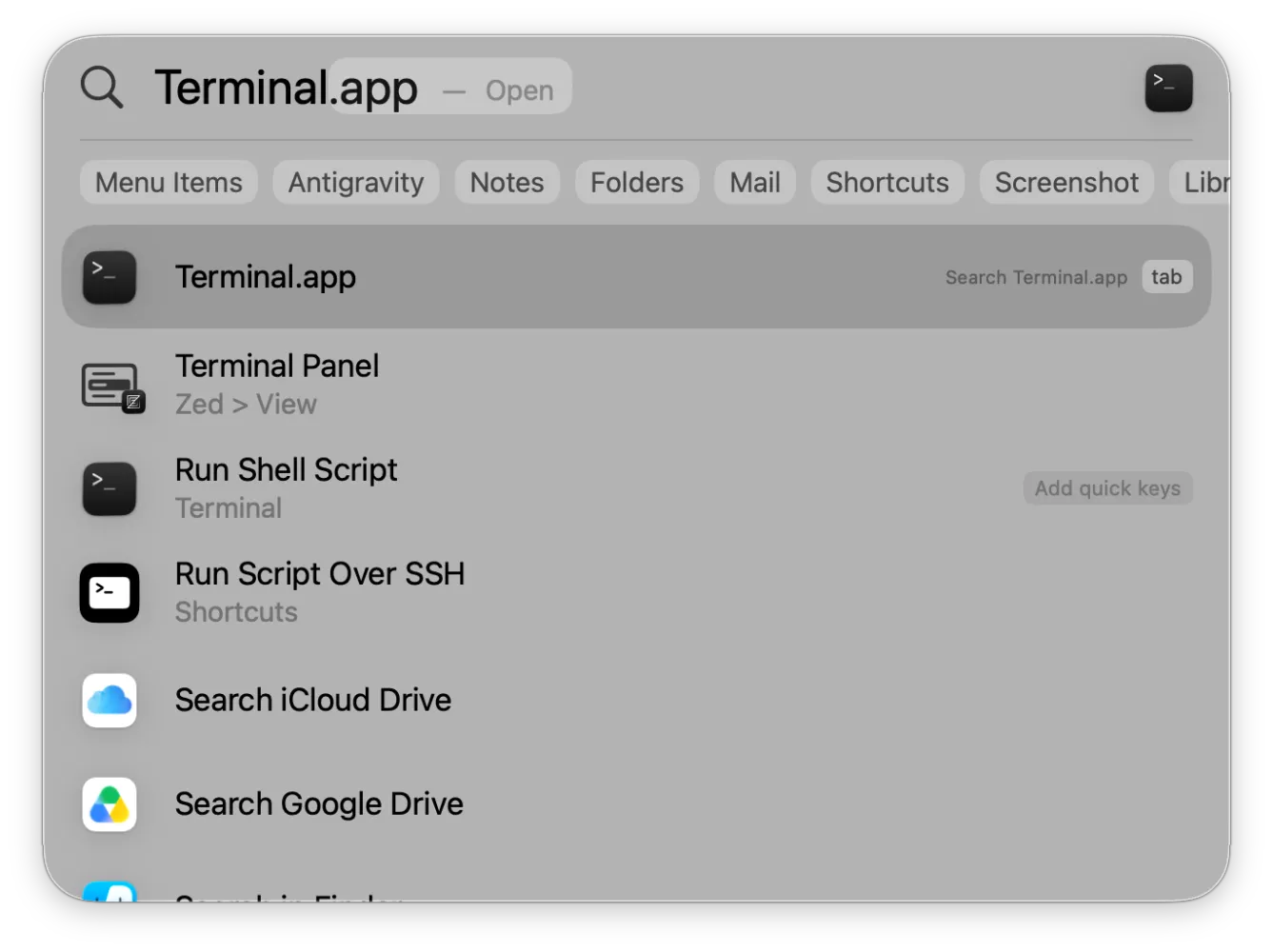
Spotlight search on Mac showing Terminal.app as the top result
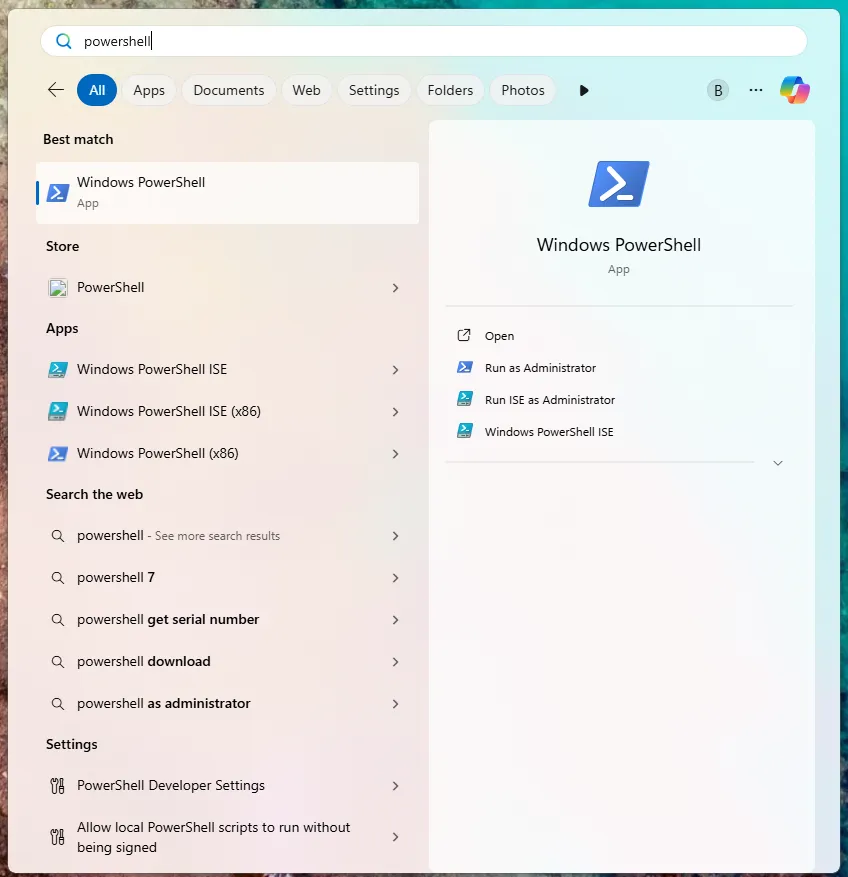
Start menu search on Windows showing Windows PowerShell as the best match
A general tip: whenever an instruction says to “run a command”, this is where you do it. Copy the command, paste it in, press Enter. That is all it means.
Step 3: Install Claude Code
Go to code.claude.com/docs and find the recommended install command for your operating system (it is the first one, no Node.js needed). Copy it, don’t retype it. Click the copy icon on the right of the command box, then paste it into your Terminal.
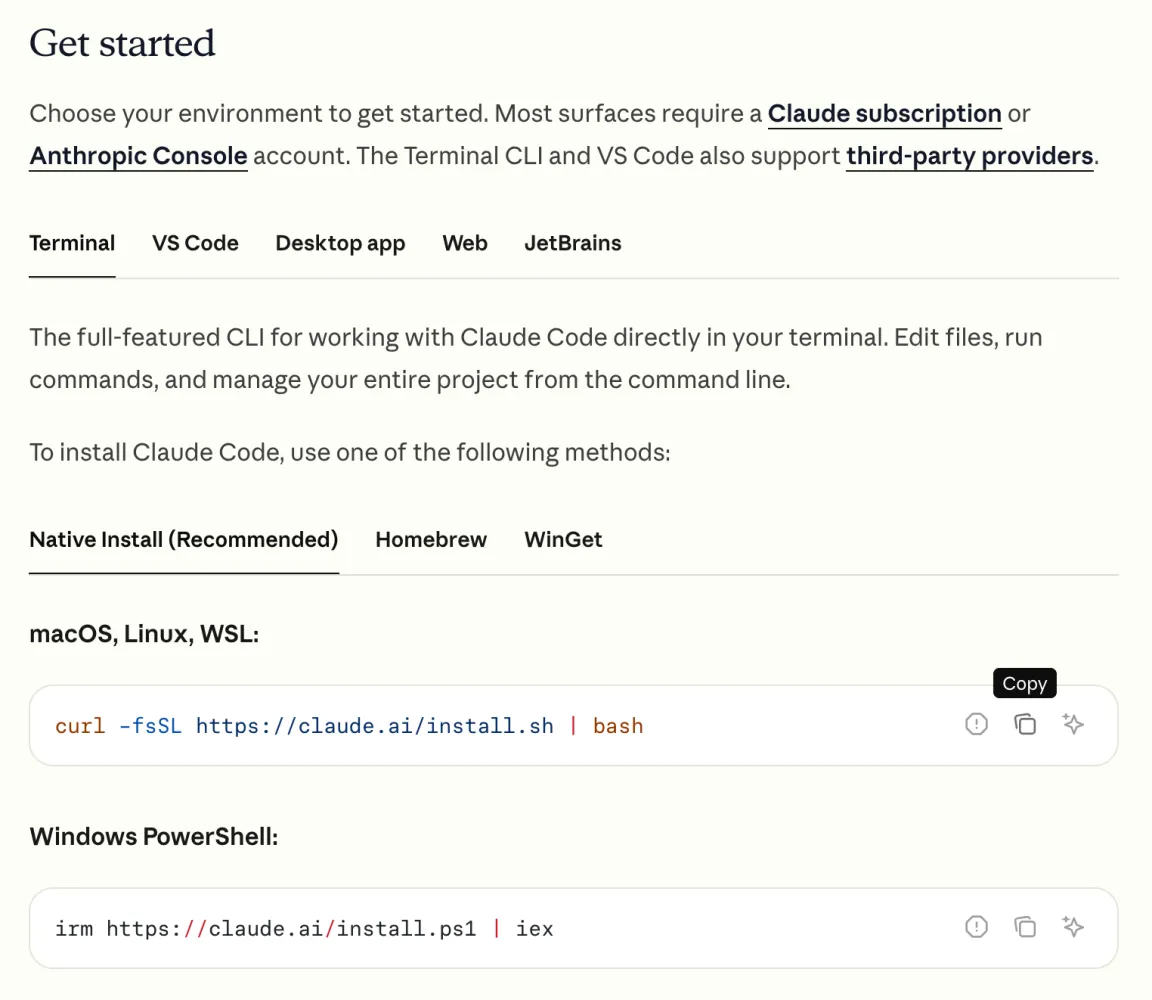
Claude Code docs install page showing the copy icon next to each install command
On Mac it looks like this:
curl -fsSL https://claude.ai/install.sh | bash
On Windows PowerShell it looks like this:
irm https://claude.ai/install.ps1 | iex
Press Enter and wait for it to finish.
Step 4: Add Claude Code to the PATH
This is the step the docs gloss over. Without it, your computer can’t find the “claude” command even after it is installed.
Mac: at the end of the install, the installer prints the exact command to fix this for your machine. Copy it, paste it, press Enter. It looks like this:

Installer output showing the command that adds Claude Code to the PATH on Mac
It saves the PATH setting permanently and reloads it. No need to restart Terminal, you can carry on in the same window.
Windows: it takes a few clicks.
-
Click Start, search “environment variables”, open “Edit the system environment variables”.
-
Click “Environment Variables…” at the bottom.
-
Under “User variables”, select Path and click “Edit…”. Do the same under “System variables” after.
-
Click “New”, type %USERPROFILE%.local, press Enter, then OK.
-
Close and reopen PowerShell. Unlike Terminal on Mac, an open PowerShell window won’t pick up the new PATH, only a fresh one will.
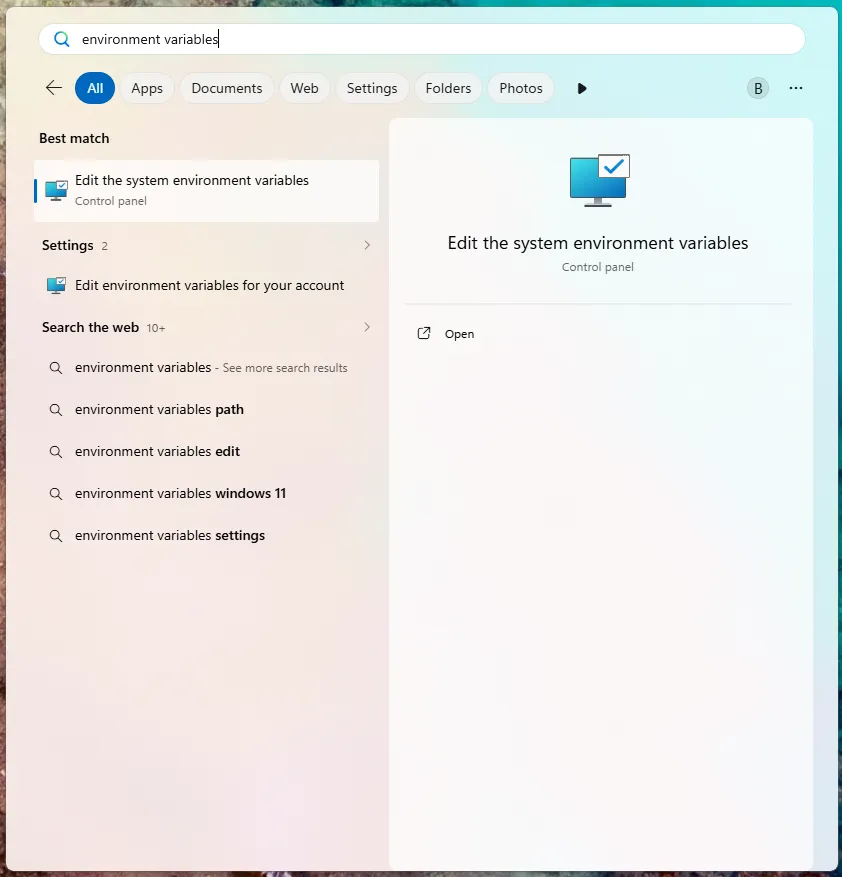
Start menu search showing Edit the system environment variables as the best match
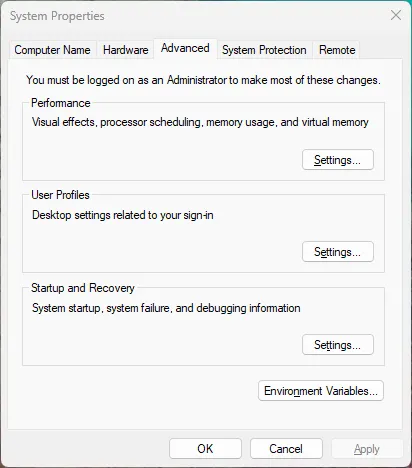
System Properties window with the Environment Variables button
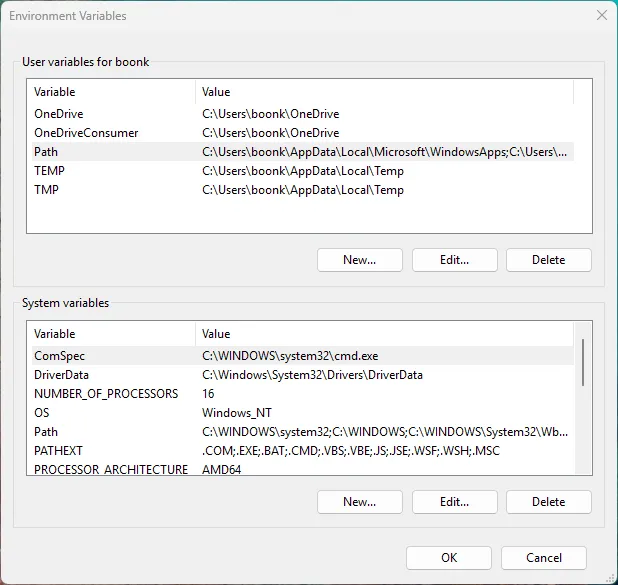
Environment Variables dialog showing Path under User variables and System variables
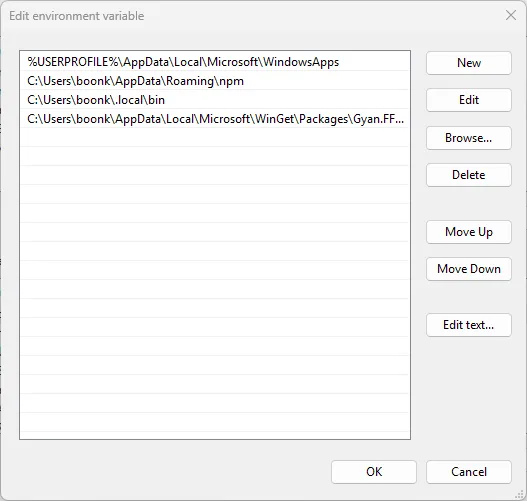
Edit environment variable list before adding the new entry
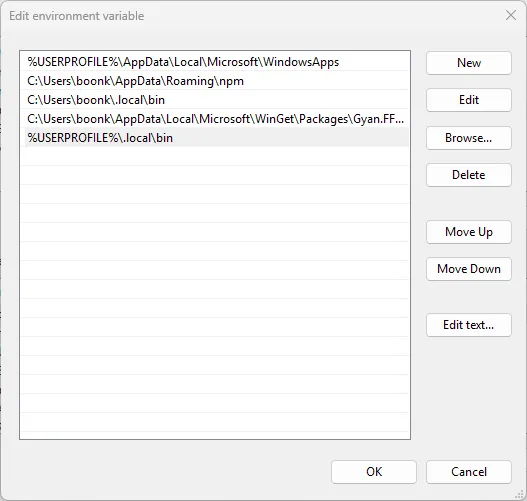
Edit environment variable list with the new %USERPROFILE%.local\bin entry added
Step 5: Run It and Log In
Type claude and press Enter. The first time, it opens your browser to log in. Sign in with the Claude account you paid for, and you are in.
If the browser doesn’t open, press c to copy the login link, then paste it into your browser yourself.
The Blocker Was Never That Claude Code Is Hard to Use
Once you are in, getting started is the same as chatting with any AI, in plain English. There is plenty more to learn from there, but none of it stands between you and your first conversation.
I have watched five cohorts, over 60 non-technical learners, consultants, coaches, and business owners who had barely touched a terminal, get Claude Code running and ship a live website within hours. The blocker was never them. It was three invisible assumptions nobody wrote down.
If you are a non-coder, the tool isn’t the hard part. The setup docs written for developers are.
#AI #ClaudeCode #VibeCoding #BuildInPublic #AITools
–
Looking to learn Claude Code from a practitioner? I run workshops sharing how I actually use it.
Foundations of Claude Code: boonkgim.com/workshops/foundations-claude-code
Advanced Claude Code for Personal Automation: boonkgim.com/workshops/claude-code-personal-automation
Foundations of Claude: boonkgim.com/workshops/foundations-claude
All workshops are designed for non-technical business professionals who want to push the limit.
Enjoyed this? Subscribe for more.
Practical insights on AI, growth, and independent learning. No spam.
More in Vibe Coding
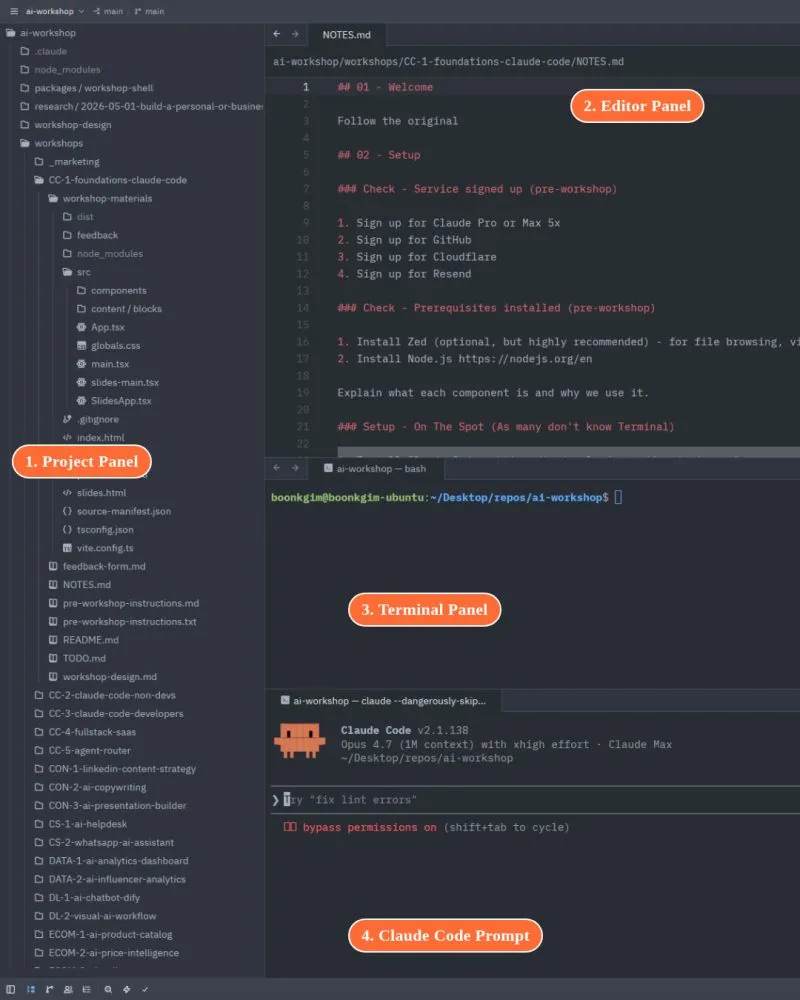
Recently, I ran a Claude Code foundations workshop for non-developers.
What I realised: the knowledge gap between developers and non-developers can be quite wide. Things I thought were obvious were not obvious to some learners.
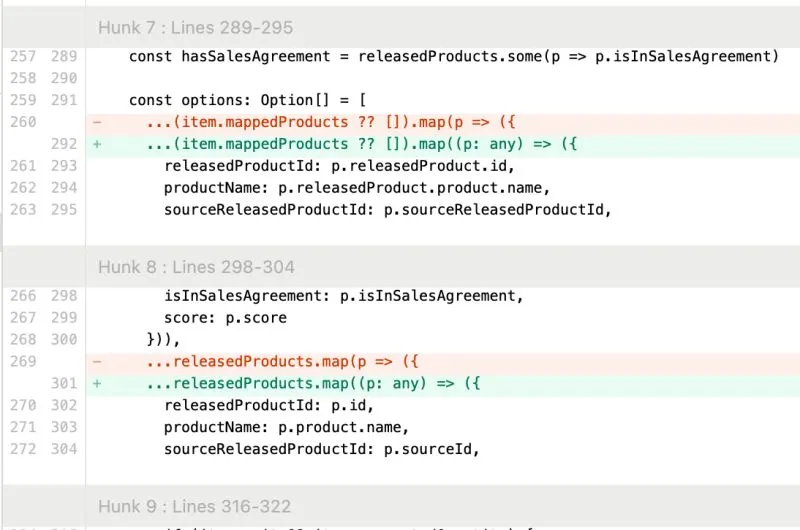
I caught Cursor trying to be lazy.
The AI agent couldn’t solve the typing error, so it cast the variable to 'any' to suppress the error, just like a sloppy software engineer would.

"My Claude Code performance has tanked and I'm not sure why"
This is one of the most common posts in Reddit's Claude Code community.
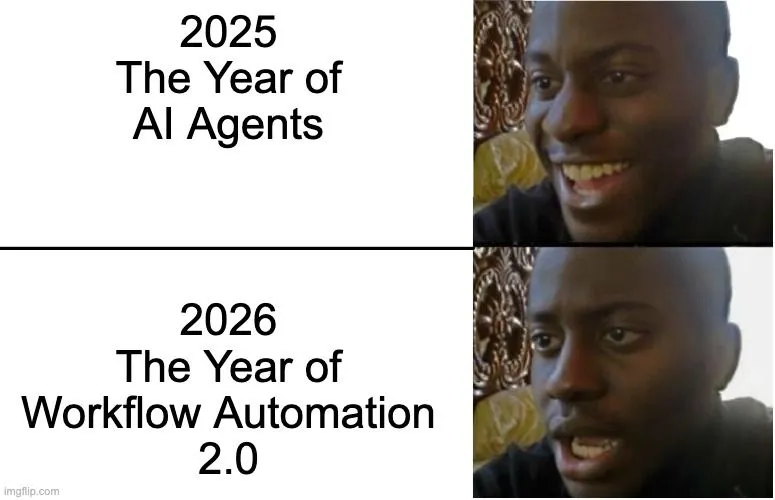
We were promised autonomous AI agents. But got Workflow Automation 2.0 instead.
2025: The Year of AI Agents 😄

From ChatGPT to Claude Code: A Non-Techie’s Introduction to the Raw Power of AI by a Techie
Not because I don't like sharing. But because the only tool I use for 99% of my AI needs is Claude Code. And while I think it is not hard to learn, I'm never...
How to connect Claude Code to Telegram the official way after Anthropic banned OpenClaw.
Recently, some learners asked me how I connected my Claude Code to Telegram after Anthropic banned OpenClaw.
Recently, I ran a Claude Code foundations workshop for non-developers.
What I realised: the knowledge gap between developers and non-developers can be quite wide. Things I thought were obvious were not obvious to some learners.
We were promised autonomous AI agents. But got Workflow Automation 2.0 instead.
2025: The Year of AI Agents 😄
How to connect Claude Code to Telegram the official way after Anthropic banned OpenClaw.
Recently, some learners asked me how I connected my Claude Code to Telegram after Anthropic banned OpenClaw.
I caught Cursor trying to be lazy.
The AI agent couldn’t solve the typing error, so it cast the variable to 'any' to suppress the error, just like a sloppy software engineer would.
"My Claude Code performance has tanked and I'm not sure why"
This is one of the most common posts in Reddit's Claude Code community.
From ChatGPT to Claude Code: A Non-Techie’s Introduction to the Raw Power of AI by a Techie
Not because I don't like sharing. But because the only tool I use for 99% of my AI needs is Claude Code. And while I think it is not hard to learn, I'm never...